
Plugins
A plugin packages reusable Kiki capabilities into one installable unit. A plugin can add Agent Skills, custom agents, a Skill loaded automatically at session start, system-prompt instructions, MCP servers that provide real tool capabilities, and another tool's conversation history — as a Kiki session you can keep working in or as a read-only archive. That makes plugins the way to share a workflow with a team, connect to an external service, or install from the official list.
Install and manage
/plugins opens the plugin manager in the TUI: one panel with four tabs, switched with Tab / Shift-Tab:
- Installed: Manage installed plugins
- Official: Marketplace plugins Kiki and Kimi maintain
- Curated: Third-party plugins from Kimi partners in the default marketplace
- Custom: Install from a URL
Common keys:
| Key | Action |
|---|---|
Tab / Shift-Tab | Switch between the Installed / Official / Curated / Custom tabs |
Space | Enable or disable the selected installed plugin (Installed tab) |
D | Remove the selected installed plugin (Installed tab) |
M | Manage MCP servers for the selected plugin (Installed tab) |
R | Reload installed.json and all manifests (Installed tab) |
Enter | Installed tab: install the available update, or view details if up to date · Official/Curated tab: install or update · Custom tab: install |
I | View plugin details (Installed tab) |
Esc | Go back or cancel |
You can also use slash commands directly:
| Command | Description |
|---|---|
/plugins | Open the interactive plugin manager |
/plugins list | List installed plugins |
/plugins install [--trust] [--sha256 <64-hex>] <path-or-url> | Install from a local directory, zip URL, or GitHub repository URL, or update an already-installed local source by repeating the same path. --trust gives the one-time consent that a plugin running its own code needs, and is only asked on the first install of a source. --sha256 is the publisher checksum for a ZIP you chose yourself. The market already publishes that checksum, so an Official or Curated install does not ask you to type it |
/plugins marketplace [source] | Browse the official marketplace, or pass a custom marketplace JSON path or URL |
/plugins info <id> | View plugin details and diagnostics |
/plugins enable <id> | Enable a plugin |
/plugins disable <id> | Disable a plugin |
/plugins remove <id> | Remove a plugin (requires confirmation) |
/plugins reload | Re-read installed.json and the managed copies of every plugin. It does not copy anything from your source directories — to pick up a source edit, use /plugins install <path> again |
/plugins mcp enable <id> <server> | Enable an MCP server declared by a plugin |
/plugins mcp disable <id> <server> | Disable an MCP server declared by a plugin |
Installing from GitHub
Use /plugins install <url> to install directly from a GitHub repository. Four URL forms are supported:
https://github.com/<owner>/<repo>: Install the latest release; falls back to the default branch if no release existshttps://github.com/<owner>/<repo>/tree/<ref>: Install a specific branch, tag, or short commit SHAhttps://github.com/<owner>/<repo>/releases/tag/<tag>: Pin to a specific taghttps://github.com/<owner>/<repo>/commit/<sha>: Pin to a specific commit
Network requests only go through github.com redirects and codeload.github.com downloads; api.github.com is not called.
Installing a plugin that runs code
Most of a plugin is declarative: Skills, agents, prompt text, themes, MCP server declarations. A plugin that needs more ships an entry file, and Kiki runs that file as Node.js code with your account's permissions — that is how a plugin reads a folder you point it at or imports a history file. That code is not sandboxed; it has the same access you do.
Kiki therefore asks once per source before installing such a plugin. /plugins install <source> reports that it runs trusted code and stops; add --trust to consent:
/plugins install --trust ./my-pluginIn the GUI the install sheet lists what the plugin would add and be able to do, and its button reads Allow and install while this consent is needed.
The consent is remembered per source, not per file, page or call. Reinstalling or updating from the same source does not ask again, even if its contributions, description or declared permissions changed since you approved; a different source that reuses the same plugin id asks again; and for a GitHub URL the source is owner/repo, so switching branch, tag or commit inside that repository does not ask. The one change that does ask is a plugin that starts shipping an entry file it did not have.
You are approving the source, not the exact bytes: Kiki fingerprints the plugin folder at the preview and refuses an install whose files changed afterwards. That protects the preview, not later actions — the tool calls a trusted plugin makes still follow your current permission mode and tool rules.
Things worth knowing
- Local edits take effect in the conversation you are already in. Install once with
/plugins install --trust <path>, enable global use with/plugins enable <id>(a fresh CLI install leaves global use off), then after editing your source run/plugins install <path>again with the same path: the managed copy is replaced, the plugin stays enabled, and the tool is available to that conversation as soon as the command returns. No/plugins reload,/reloador/newis needed, and the consented source does not ask for--trustagain. - An update waits for that plugin's in-flight work. Running calls finish on the old version and calls arriving during the switch wait and run on the new one. Other plugins keep running untouched, and a call already resolved against an older tool definition asks for a retry instead of running against changed rules.
- A package preview does not hold up installed tools or Skills. It reads the complete package, including dependency files. Disconnecting the preview request cancels its remaining download, extraction and fingerprint work; installation still requires a completed preview.
/plugins reloadis the global re-read, ofinstalled.jsonand every managed copy. It never copies from your source directories, so it is not how you pick up a source edit; system-prompt sections and plugin Skills rebuild on their own documented timing (see System-prompt instructions and Plugin agents).- Local installs are copied to
$KIKI_HOME/plugins/managed/<id>/, and the CLI always runs from that copy. Edit the source and reinstall — editing the managed copy by hand has no update path and a later reinstall overwrites it. - Removing a plugin deletes only the installation record. The managed copy and your source files stay on disk.
- Plugins are installed once per Kiki home. Workspaces and sessions share the package while choosing their own use.
Choose where a plugin is used
Install one copy of a plugin, then choose where it is used. The GUI install preview offers global use, use in one workspace, or installation for later. Installing for later leaves it off by default and does not start its App background service. The same preview and one-time consent apply to every choice.
In Settings → Workspaces, open a workspace to set its plugin defaults. In a conversation, open Capability controls → Plugins in the right rail to change plugin use for that session only; Capability inventory → Tools shows the plugin's tools rather than its usage switch. Selecting an installed plugin from the composer's + menu or plugin picker also enables it only for that session, without sending a message. Before your first message, those choices stay with the new-conversation draft and apply before that message starts; a failed application keeps the draft for retry. Other sessions and workspace defaults stay unchanged. This capability is available by default; an explicit [experimental] plugin_workspace_usage = false or KIKI_EXPERIMENTAL_PLUGIN_WORKSPACE_USAGE=0 keeps the selection surface off.
The most specific selection wins: session, then workspace, then global default. Restore default removes the local override. An explicitly globally disabled or invalid plugin cannot be enabled locally; restore its master switch in Plugin settings first. Profile tool restrictions still apply.
Turning a plugin off removes its tools, Skills, commands, plugin agents, hooks and panel access from that scope. Calls already admitted may finish. Plugin instructions update at the next safe step; a completed selection does not rewrite an already sent request or past messages. Applying indicates that catalog or runtime changes are still being applied. A failed application restores the previous selection and shows the error.
App-activated plugins use a shared background service owned by the connected Kiki home, not a separate process per workspace. A local off does not stop that service or another session's running work, and its presence does not make tools available in scopes where the plugin is off. Manage global disable and uninstall in Plugin settings. Scope selection neither revokes installation consent nor sandboxes trusted plugin code.
Custom marketplace JSON
Pass a marketplace JSON path or URL to /plugins marketplace <source>, set KIKI_PLUGIN_MARKETPLACE_URL, or configure [plugins] marketplace_url in config.toml; the command wins over the environment variable, which wins over the config. With no custom source, Kiki uses the official Kiki Plugins catalog. If the catalog cannot be reached, the bundled metadata still lets you browse it; installing a package still needs access to its download URL.
Kiki's own plugins — writing, document extraction, media sources, Notion and the rest — are built in a separate Kiki Plugins repository, not in the Kiki source tree. That is where their source lives, where you send a change, and what a development checkout points at. Installing from the official catalog is the ordinary route: Kiki downloads the published package and checks it against the SHA256 digest recorded in the catalog, so what runs is the artifact that was released, not whatever a directory happens to contain. A remote ZIP catalog entry carries sha256. Market, detail, and session installs send that digest with the download URL. A GitHub repository URL and a local directory do not use a ZIP digest. A checkout of that repository is only for working on the plugins themselves.
Each entry in the plugins array needs an id and a source (local path, zip URL or GitHub URL):
{
  "version": "2",
  "plugins": [
    {
      "id": "my-plugin",
      "displayName": "My Plugin",
      "source": "./my-plugin"
    }
  ]
}
Local document extraction
Kiki Extract (kiki-extract, formerly kiki-documents) converts a local PDF, Office, HTML or text file into Markdown that Read and Grep can use. Install and enable it from the plugin manager, then ask Kiki to extract a file into a new folder and read the result. Everything it needs is bundled — no runtime npm install, no skill checkout. Installing the renamed package replaces an existing kiki-documents install rather than sitting beside it, so your existing settings carry over.
HTML (.html/.htm), Markdown and plain text work immediately. Local PDF, DOCX, XLSX/XLS and PPTX need Python 3.10+ with MarkItDown's matching format dependencies on the machine running Kiki. Prepare a virtual environment once:
python -m venv .venv-documentsOn Windows, install the formats you need with:
.venv-documents/Scripts/python.exe -m pip install "markitdown[pdf,docx,xlsx,xls,pptx]"On macOS/Linux, use .venv-documents/bin/python instead. For PDF only, use markitdown[pdf]. Point the plugin at that interpreter in Capabilities → Extensions & tools → Plugins → Kiki Extract → Settings → Python with MarkItDown (pythonPath); it installs neither Python nor the pip dependencies for you.
Each extraction writes a new output directory with document.md, an extraction.json recording source, engine and warnings, and whatever assets the engine actually returned. The source is untouched and existing output is never overwritten. The response preview may be shortened and marked previewTruncated — read the saved Markdown for the full text. MarkItDown does not export images, and Defuddle does not download linked ones.
Auto processing stays local: nothing is uploaded and no OCR runs. An empty or image-only scan fails rather than being reported as readable, and a partly scanned document can still omit its image-only pages. For cloud OCR, authorize uploading the file to MinerU, set its token in the plugin settings, and select engine=mineru with allowUpload=true; the service's terms and charges apply, and stopping local waiting does not cancel the remote task. A missing dependency, an unsupported format or a file over the limit returns an error rather than a partial extraction. Input is capped at 50 MiB with a 600-second deadline.
Output translation and rewriting
Kiki Output Layer (kiki-output-layer) streams translations or rewrites of Assistant text while you read, leaving the original conversation and main model context unchanged. It uses your existing Kiki models and connections, without another copy of your API key.
To try the local package, install and enable it from a Kiki session at the root of the Kiki Plugins repository:
/plugins install --trust ./plugins/official/kiki-output-layer
/plugins enable kiki-output-layer
Output presets are available when the installed plugin is selected for the current conversation: a conversation choice overrides its workspace choice, which overrides global usage. The package includes Chinese translation, English translation, Plain language, Catgirl, Tsundere and Custom presets. In the GUI composer's output preset menu, edit a preset's instruction and choose a model before selecting it; a blank model leaves processing off instead of using Kiki's default model. For a custom model on an existing connection, choose the connection and enter the model ID and context window. Leave the per-group output limit blank for no extra cap, or enter a positive token limit; the model's own capacity still applies.
Use the same menu to add a preset from a built-in template without replacing saved presets or their edited instructions. To update the installed package, run /plugins install ./plugins/official/kiki-output-layer again from the plugin repository. Installation, enabling and updates take effect in the current conversation. Preset edits apply to new requests; a request already in flight keeps its starting configuration.
Text is grouped at roughly 600 Unicode characters by default. Visible groups run first, with one group preloaded in each direction; all three values are configurable. Unvisited history is not processed in bulk. You can switch back to the original at any time, copy the current reading version, or copy the original separately. Cancelling or failing an output-layer request does not stop the main model, and the original stays readable.
Reading results and output-layer model history are stored separately. The default history budget is 16,384 tokens; set it to 0 to disable history. At the budget or model-window limit, the whole history cycle restarts from the current group. Clearing model history keeps generated reading results, while clearing reading results allows them to be generated again. Undoing or retrying the source text invalidates old results.
Media Sources
Install and enable Kiki Media (kiki-media) once, then open Capabilities → Extensions & tools → Plugins → Media sources. Version 0.2.0 includes OpenAI, Google, Ark, xAI, MiniMax, StepFun, Novita, Agnes, NewAPI and ComfyUI sources for images, video and speech; you do not need a separate package for each vendor. Your own local commands can join the same list as script sources.
The unified package needs a Kiki host with grouped media sources and script-source management. If your build has no Add script source action or rejects unknown manifest fields, update the host first. The package's plugin-engine requirement >=0.4.0 is a protocol version, not a CLI release number; the package README gives the host contract.
Starting generation
Media generation has no experimental master switch. Install and enable the plugin, configure an enabled source, then request a generation. Opening the list or saving settings does not start a job; the source's access requirements, charges and script authorization still apply.
The list
Each row identifies a source and its owning package, with its configuration and enabled state. Open a source marked Needs setup to fill in missing settings. A disabled or removed source stays visible so you can restore it; a package that did not load must be repaired before its sources can generate. A blocked job is kept rather than discarded.
Filter by modality (image, video, speech) or status, or type to search. The count beside each band is the whole list, not the filtered one, so a filter never hides how much sits behind it. Model and voice discovery runs when requested in a source's detail, not just because the list opened.
Configuring a source
Open a row, edit that source's settings, and save. Built-in sources share one plugin but have separate endpoints, keys and enabled states; saving one does not overwrite the others. A rejected save keeps your draft and displays the error.
API keys and script environment values are write-only in these forms. Kiki shows whether a value is stored without returning its contents; replacing or clearing it is an ordinary edit. They use the existing plugin configuration storage, not a separate encrypted vault.
A source is configured one of three ways:
- Its own settings. Supply an API key and, if required, a base URL. These are required only while no connection is selected.
- An existing Kiki connection. Select a connection in the source form to reuse its endpoint and authentication, including Kiki's existing OAuth refresh. The source's own key and endpoint are then neither required nor used. The selected connection must resolve; Kiki does not fall back to a previously stored key if it cannot.
- Self-managed. A script can use its own environment variables or an external credentials file. The absence of a Kiki-managed key does not make that source broken.
A text subscription or OAuth login does not by itself grant media API access. Check the service's media access and charges before generating. ComfyUI needs your running endpoint, workflow and installed models; Kiki does not install a GPU engine or model files for it.
Adding a script source
Choose Add script source, give it a unique lowercase id and label, choose its modalities, and enter the command you already run locally. Supply one argument per line, an optional working directory, and optional environment variables as a JSON object. Install the command's own runtime and dependencies first. It can read external files and run independently of Kiki; no Kiki API import is required.
For file output, the command writes the filename supplied by {output}. Use {prompt} for an image/video prompt or {text} for speech, and set the output extension and MIME type if they differ from PNG, MP4 or MP3. For example, a command node speech.mjs "Hello" out.mp3 can use command node and these arguments:
/path/to/speech.mjs
{text}
{output}
Choose JSON bridge for asynchronous handles, polling, cancellation or multiple files. It passes input and result-file paths to the command; the package README specifies the placeholders and result format. A poll must continue its accepted handle, not submit another paid job.
The command runs under your account after the plugin's installation trust decision, not in a sandbox or behind a new per-run approval. Script output can appear in Task output, so do not print credentials. A saved source id cannot be reused; restore a removed source instead of replacing its saved handles.
Source lifecycle and upgrades
Disable or remove a source in its detail without uninstalling Kiki Media. Other sources, saved settings, jobs and completed files remain intact. Removal is reversible: restore that row to use it again. Restoring the original compatible endpoint and credentials lets a saved unified-source handle continue polling or downloading, never submit a new generation.
Installed legacy kiki-media-<vendor> packages remain installed after upgrading. Their settings and keys supply defaults for the matching built-in source until you override or clear a field. A previously disabled legacy source stays disabled unless you explicitly enable its built-in replacement. New requests use the unified adapter without a duplicate vendor row.
Existing jobs keep their original provider package, configuration and accepted handle. Keep that original package enabled and compatible while its jobs need it; disabling or removing the unified source does not change the legacy package's state. Upgrade does not copy or delete OAuth refresh tokens, and completed original files remain available.
Per-modality defaults
Three settings on Kiki Media pick the default source for images, video and speech. They are ordinary plugin settings stored with the rest of the package's configuration, and a default source says so on its row.
When a modality has no default and exactly one enabled source could serve it, Kiki uses that one. If several could, Kiki asks you to choose rather than picking one and charging you for it.
Recent generations
The same page lists this session's recent media jobs and keeps listing them when generation is off. Jobs use the existing session-owned Task and completion notification path. Each delivered original file has a preview, download or in-page player; speech returns a finite audio file, not a bidirectional live voice session. Two states are worth reading carefully:
- Outcome unknown — Kiki cannot confirm whether the vendor accepted the submission, so it may still be generating and charging. Nothing is regenerated and no retry is offered, because a retry is a second charge.
- Stopped — Kiki stopped waiting locally. Whether the vendor also stopped, and whether it is still charging, is what the vendor reports, and the row says which.
A job that partly finished keeps the files that landed. Keep fetching continues that same job through the session and agent that owns it, and Stop waiting does the same; both act only on the session that produced the job.
Discovery sources
Where new plugins can be discovered from is different from which media sources are configured, so catalog subscriptions have their own folded section at the bottom. Adding, pausing or removing a discovery source changes nothing about already-installed packages, keys or past jobs.
Official Plugins
The Official tab lists plugins maintained in the Kiki Plugins repository alongside upstream entries maintained by Kimi:
- Kiki Extract, Kiki Office Suite, Kiki Work, and Kiki Writing — convert local PDF, Office, HTML, and text files into readable Markdown (see Local document extraction), create and edit local Word, Excel, and PowerPoint files, audit CSV/TSV keys and reconcile two tables locally without modifying or uploading them, and work in a focused manuscript panel with a draft command
- Kiki Notion — connect to Notion's hosted MCP service to search, summarize with source links, and write back to a specified page on request (see Notion material and write-back)
- Kiki Media — one package with ten built-in image, video, and speech service sources plus your own local scripts
- Task board (
kiki-task-board) — persistent requirement cards for a workspace, linked to the sessions working on them (see Task board) - Cloudflare Tunnel (
kiki-cloudflare) and Kiki Sites (kiki-sites) — connect an existing Cloudflare Tunnel and manage its Kiki-owned connector, or connect code hosting and deploy sites and apps through official service CLIs and APIs - Desktop Pet (
kiki-pet) — an isolated native desktop companion that reacts to Kiki tasks, imports Codex pets, and carries a pet-making skill
The Kimi entries are maintained by Moonshot AI and published on Kimi's own CDN rather than the Kiki plugin repository:
- Kimi Datasource — query market data, macro indicators, company records, academic literature, and Chinese law in natural language (requires Kimi Code OAuth sign-in and plan quota)
- Kimi Browser Extension — let AI drive the browser you already use (requires installing the matching browser extension)
Kimi Computer Use is not in the tab; it installs from a direct URL in its own section below.
Curated is separate: third-party plugins (such as superpowers, vercel-plugin, and modern-web-guidance), each pinned to a specific commit so you can preview imported contributions before enabling.
Installing and upgrading
- Run
/pluginsand pressTabto select Official - Find the plugin and press
Enterto install - Enable it with
/plugins enable <id>, or choose its workspace/session use in the GUI; no new session is needed
Installing downloads the published package and verifies it against the SHA256 digest in the catalog, so a package whose bytes do not match the released artifact is refused rather than installed.
Note
Kimi Browser Extension needs a second step: after the plugin is installed, install the browser extension too.
Official plugins do not update on their own. You are prompted the next time you use an out-of-date version, and upgrading means repeating the three steps above.
Working on an official plugin
The source for Kiki's own plugins is the Kiki Plugins repository, one directory per package under plugins/official/. To try a change locally, clone it and install that directory from the repository root:
git clone https://github.com/X-T-E-R/kiki-plugins
cd kiki-plugins
Then, from that root, in Kiki:
/plugins install --trust ./plugins/official/kiki-notion
/plugins enable kiki-notion
That is an ordinary local install: the package is copied into $KIKI_HOME/plugins/managed/, and from then on you edit the checkout and run /plugins install <same path> again to push a change in. It is a different thing from installing from the Official tab, which downloads the published release. To go back to the released version, install it from the tab again.
Kimi Datasource v3.3.0
Kimi Datasource is the official Kiki data plugin, letting you query financial market data, macroeconomic indicators, corporate registration records, academic literature, and Chinese laws and regulations in natural language — no manual API calls or data accounts required.
You must first complete OAuth login with a Kimi Code account via /login; data queries consume your Kimi Code plan quota.
How to use
- Describe your need in natural language, and Kiki will automatically invoke the data capabilities
- Explicitly trigger the data query skill with
/skill:kimi-datasource
What you can do
Live market research: Want to run a quantitative analysis on a stock? Pull three years of daily closing prices, MACD, and KDJ signals in a single query — no third-party data platforms needed.
Cross-country macro comparison: Studying supply-chain shifts across China, India, and Vietnam? Get complete GDP growth, trade volume, and demographic time-series from World Bank data spanning 50+ years, all in one go.
Pre-contract risk check: Need to vet a counterparty fast? Type the company name and instantly get business registration, equity structure, litigation disputes, and credit blacklist status — right when you need it.
Literature review acceleration: Tracing the research arc of RLHF? Get the most-cited papers, key authors, and core findings in seconds, so your literature review outline takes shape in half the time.
On-the-spot legal lookup: Stuck on which statute governs a residence-right contract dispute? Pinpoint the relevant Civil Code articles — full text, authority level, and validity — then pull a few comparable precedents to back them up, without digging through statute databases.
Institutional-grade US equity research: Writing a deep dive on a US stock? Pull the annual report, standardized financial metrics, top-50 holders, and consensus estimates in one go — no more juggling multiple data terminals.
Coverage
| Category | Scope |
|---|---|
| Stocks & financial markets | Well-known databases such as Wind, S&P Capital IQ, and SEC EDGAR, covering prices, technical indicators, financials and valuation, and consensus estimates across A-shares, HK, US, and other major markets, plus official filings for 8,000+ US-listed companies |
| Macroeconomics | Well-known databases such as the World Bank and IMF, covering 50+ years of time series for 189 countries: GDP, trade, population, exchange rates, CPI, balance of payments, GDP forecasts, and more |
| Corporate data | Business registration, equity chain, legal risk, and related-entity graph for mainland Chinese companies |
| Academic literature | Millions of papers across physics, mathematics, CS, quantitative finance, economics — including preprints |
| Legal | Chinese laws, regulations, and judicial cases — statute search and detail lookup across all authority levels, plus ordinary and authoritative case search |
| Smart screening | Well-known databases such as Gildata, covering natural-language screening for stocks, funds, and fund managers, plus macro-industry data, research reports, announcements, and news |
Billing and limitations
- Data queries are billed per call and consume Kimi Code account credits
- The plugin provides read-only queries; no write or trading functionality is available
- Technical indicators and real-time prices are only available during active trading hours
- AI-generated output is for reference only and does not constitute investment or business advice
Kimi Browser Extension v1.11.4
Kimi Browser Extension lets AI drive the browser you already use, with your own logins and cookies — not an emulator and not a crawler. It can open pages, read content, click, fill in forms and take screenshots, which takes repetitive web work off your hands. The Kimi Browser Extension site has the product overview.
Install the browser extension
After installing via /plugins, you also need the Kimi Browser Extension in your browser before AI can drive it. There are two ways to install it:
Option 1: Install from a store (recommended)
Open the Chrome Web Store or Edge Add-ons page and click Add.
Option 2: Install manually
Use this when you can't reach the stores:
Download the extension package and unzip it
Type
chrome://extensions/in the address bar to open the extensions page, then turn on Developer mode in the top-right corner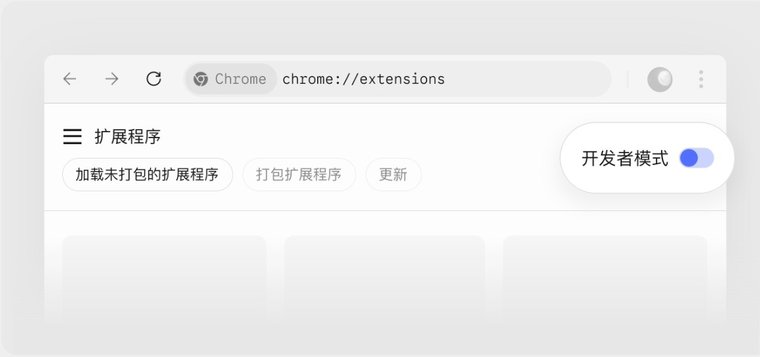
Click Load unpacked in the top-left corner and select the unzipped
kimi-webbridge-extensionfolder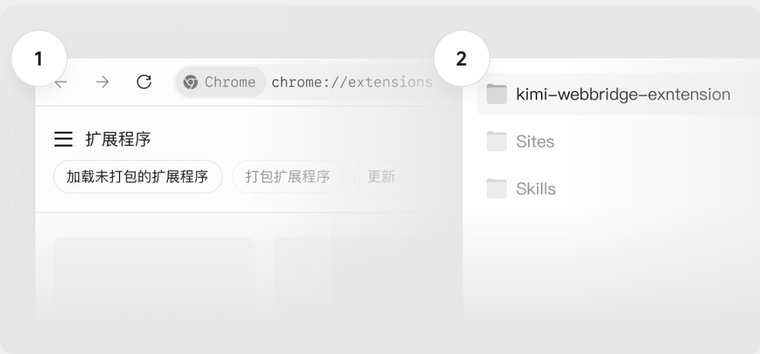
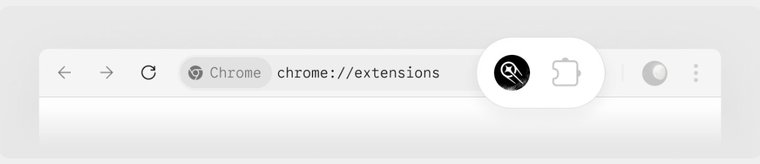
Once installed, the Kimi Browser Extension icon appears in the browser toolbar. Seeing the icon means the installation succeeded, and AI can start working on web pages for you.
What you can do
- Web automation: Just say what you need — AI clicks through pages, fills in forms, reads content, and takes screenshots for you
- Social trending research: Automatically browse trending topics on X (Twitter), Weibo, and Xiaohongshu, open the top-liked posts one by one to screenshot and extract key viewpoints, then organize everything into a research library with topic suggestions
- Job listing collection: Filter positions on recruiting sites by keyword, city, and job type, and organize titles, links, companies, salaries, and application methods into a table
- Competitive analysis: Batch-question multiple AI products and collect their answers to build side-by-side comparison reports
- Flight price comparison: Query the same itinerary across multiple travel platforms, record airlines, departure/arrival times, and links sorted by price, and get recommended options
Kimi Computer Use v0.5.4
Kimi Computer Use lets AI operate your desktop apps directly — clicking, dragging, scrolling and typing. On macOS it works in the background without taking over your mouse (a few popup actions may still bring an app forward); the Windows version behaves differently.
Authorization (macOS)
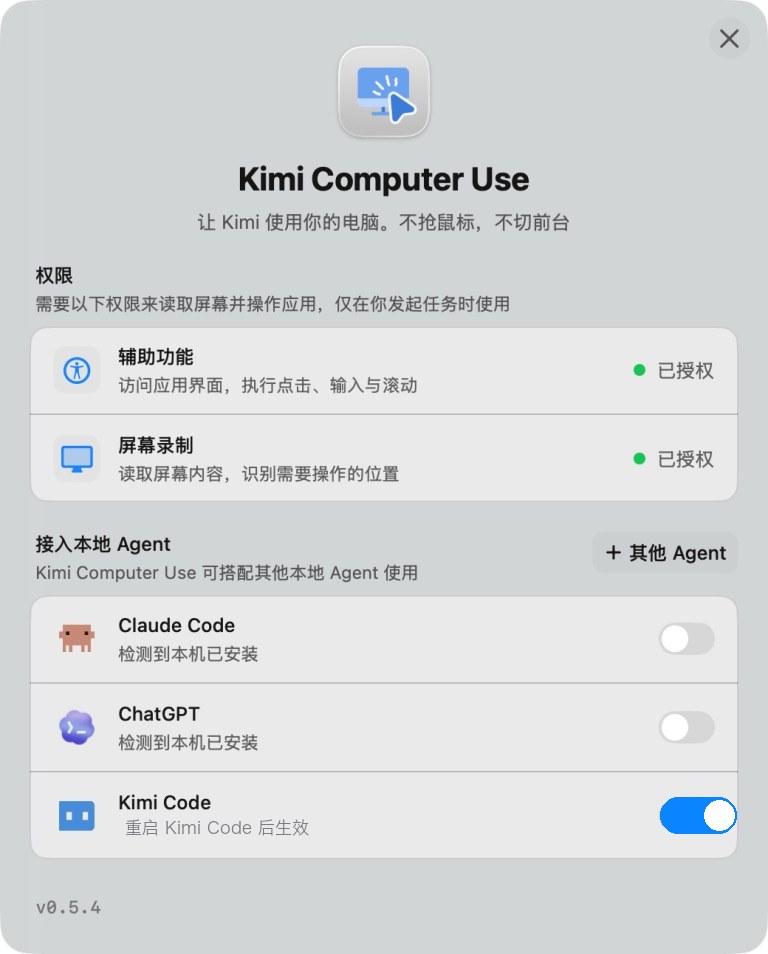
The first time you use Kimi Computer Use after installation, it shows an authorization window — just follow the prompts:
- Click Authorize next to Accessibility and Screen Recording, and enable both permissions in System Settings — the former lets it perform clicks, typing, and scrolling; the latter lets it read screen content and locate UI elements
- Turn on the Kiki switch under "Connect local agents", then restart Kiki for it to take effect
The Windows version
The Windows build (WinCU) installs differently: run /plugins install https://cdn.kimi.com/kimi-computer-use-windows/latest/kimi-cu-win-plugin.zip in Kiki and restart afterwards.
- It may briefly take over your mouse and keyboard. Windows cannot reliably inject input in the background, so it may activate the target window and use your real input while acting.
- Requirements: Windows 10 version 1903 (build 18362) or later, or Windows 11, x64. It needs a real interactive desktop session, so Windows Server requires Desktop Experience.
- No extra permissions. Windows does not need the Accessibility and Screen Recording grants macOS asks for.
- Matching privilege level. If the target app runs as administrator, KimiCU must run at the same level.
What you can do
- Organize and enter information: Have AI gather scattered information into Notes, spreadsheets, or your note-taking app, instead of typing everything in by hand
- Walk through site and app flows: After changing a page, let AI click through the key flows and screenshot each step to confirm rendering and navigation work
- Handle repetitive operations: Repeatedly opening, copying, pasting, and checking can run silently in the background without taking over your mouse
- Run fixed-step tasks: For flows with clear steps, spell them out and AI follows along; for example, ask AI to open NetEase Cloud Music and play a specific song
- Handle software that has no API: Plenty of professional tools and internal systems have no CLI or API at all; what used to require your own clicking can now be handed to AI, like trimming the first three seconds off a clip in Final Cut Pro and exporting it
Note
Keep payments and transfers, deleting important files, changing passwords and posting content to yourself. A task suits this tool when you can check the result, undo it if it goes wrong, and the cost of a mistake is low.
Plugin manifest
A plugin is a directory or zip file containing a manifest, at either of these locations:
<plugin_root>/kimi.plugin.json
<plugin_root>/.kimi-plugin/plugin.json
With both present, kimi.plugin.json wins.
Example:
{
  "name": "kimi-finance",
  "version": "1.0.0",
  "description": "Finance data and analysis workflows for Kiki",
  "skills": "./skills/",
  "systemPromptPath": "./SYSTEM.md",
  "sessionStart": {
    "skill": "using-finance"
  },
  "interface": {
    "displayName": "Kimi Finance",
    "shortDescription": "Market data and financial analysis workflows"
  }
}
Supported fields:
| Field | Description |
|---|---|
name | Required; serves as the plugin id. Must match [a-z0-9][a-z0-9_-]{0,63} |
version, description, keywords, author, homepage, license | Display metadata |
interface | Fields shown in /plugins: displayName, shortDescription, longDescription, developerName, websiteURL |
icon | A ./ path to an .svg or .png file inside the plugin (64 KB max). GET /api/plugins returns it as an inert data: URI, for a GUI to draw next to the plugin |
skills | One or more ./ paths; must be within the plugin root directory. When omitted, the SKILL.md in the root directory is treated as a single Skill root |
agents | One or more ./ paths; must be within the plugin root directory and point to directories containing agent files. When omitted, the agents/ directory under the plugin root (if present) is picked up automatically |
sessionStart.skill | Loads the specified plugin Skill into the main Agent when a new or resumed session starts |
skillInstructions | Additional instructions appended whenever a Skill from this plugin is loaded |
systemPrompt | Inline instructions contributed to the agent's system prompt while the plugin is enabled |
systemPromptPath | A ./ path to a UTF-8 text file containing system-prompt instructions; combined after systemPrompt when both are present |
mcpServers | MCP server declarations; enabled by default, can be disabled from /plugins |
hooks | Hook rules run on lifecycle events while the plugin is enabled; see Hooks in Plugins |
commands | One or more ./ paths pointing to a directory or .md file; registers the Markdown files within as slash commands. See Plugin Slash Commands |
Unsupported runtime fields such as tools, apps, inject, and configFile appear as diagnostics and are ignored.
Chat channels and message delivery
Plugins can connect a platform account to Kiki's existing session bindings and send messages from an admitted tool call. Declare executable contributions in x-kiki, then register the same definitions from entry.mjs. The SDK contracts are exported from @kiki/plugin-sdk/im and @kiki/plugin-sdk/messages.
A plugin that uses another installed plugin declares its required version range, for example "dependencies": { "kiki-media": "^1.0.0" } inside x-kiki. Kiki checks that each dependency is installed, enabled and version-compatible before activation or execution. Install or enable a missing dependency yourself; Kiki does not do so automatically. Plugins without dependencies keep their existing behavior.
For chat connections, declare x-kiki.imAdapters and call api.registerImAdapter(definition, adapter). Each definition represents one configured account and has schemaVersion: 1, a local id, label, independent inbound and outbound booleans, maxInboundBytes, and a mediaCapabilities array. Kiki assigns plugin:<pluginId>/<adapterId> as the provider and instance ID. Inbound definitions also require listenerRealm, the real protocol or message-source namespace. Use qq-onebot with the actual QQ self ID as start()'s listenerAccountId; QQ official API connections use qq-official with the app ID. accountId remains the plugin's stable binding identity and may keep an existing prefix. When listenerAccountId is omitted, Kiki uses accountId for listener ownership. An already-running listener retains a source/account claim; a conflicting new listener stops and reports account_in_use. Output-only connections do not claim inbound ownership.
start({ signal, settings, instanceId, offset, messageLimits, emit, report }) returns { accountId, listenerAccountId?, targets? }. Emit only after startup completes. Output-only adapters can return targets for the user to confirm without fabricating an inbound event. Disabling, reloading or removing the plugin closes its own connections and keeps the user's listening preference and bindings for later re-enabling. The user confirms each destination; group bindings default to the original sender and can explicitly use binding_scope: "topic" or "chat". A shared group session preserves each message's real sender, and does not let another member answer the original sender's pending approval or question.
For one platform message containing text and several attachments, finish normalization and media downloads before calling await emit({ kind: "message", eventId, sourceMessageId, identity, parts, ...metadata }) once. Put the real mention, quote and sender metadata on that envelope. Each ordered part has kind: "text" | "image" | "file" | "audio" | "video", optional text, and hydrated media: { name, mediaType, bytes } when available. sourceMessageId is required and operation is omitted or "create"; edits and retractions use the existing single-event form. Kiki admits all parts before one prompt and keeps their order. Existing single-kind events keep their per-event behavior; Kiki does not guess when a series of them is complete.
Read the frozen context.messageLimits object supplied to start(); managed plugins need no runtime SDK import to obtain it. Its keys are parts: 256, mediaBytes: 33554432, textChars: 1048576, serializedChars: 67108864, and chunkChars: 4194304. A complete message has 1–256 parts, at most 32 MiB of decoded media in total, and at most 1,048,576 UTF-16 code units across all part text. definition.maxInboundBytes still limits each attachment, up to 8 MiB, so two 8 MiB images fit together. The serialized envelope, including base64, escaped text and metadata, is limited to 67,108,864 UTF-16 code units. The runner automatically frames it in 4,194,304-code-unit chunks; ordinary RPC lines retain their 16,777,216-code-unit limit. Do not implement framing in the plugin.
If an attachment is known to have no usable download URL, keep its non-text kind and put its name, reason and any available ASR transcript in nonempty text, without media. Kiki renders that part in place as explicitly unavailable external text and creates no media bytes for it. A real download failure or cancellation must emit nothing for that source message; retry the whole source with the same root eventId. Exceeding a message budget rejects emit() as a whole. A part marked tooLarge: true also rejects the entire emit() without submitting or saving an earlier prefix. Stop or unload discards incomplete transport frames and rejects queued emissions from the retired connection.
After startup, use optional await context.report?.({ status: "failed", sourceId, code }) to make receive failures visible under Settings → Notifications → IM. code is hydrate_failed, download_failed, message_too_large or admission_failed; sourceId is an opaque, non-content token of 1–64 ASCII letters, digits, _ or -, stable across source retries. Reports accept no message text, URLs, credentials, error objects or stacks, and are limited to 1,024 UTF-8 bytes. Kiki binds the account and instance from the active connection and retains the newest 32 source/code diagnostics for snapshot refreshes and same-account reconnects within that Host. Older Hosts omit report; existing adapters need no changes.
After the same complete source succeeds, report status: "recovered" with its matching sourceId and code. This clears only that diagnostic, preserving other sources and connection errors. Do not report cancellation or stop as a failure, advance a source cursor after failed hydration or admission, or emit a diagnostic as a chat message. Report acknowledgement confirms diagnostic retention, not message delivery. A Host replacement starts a new diagnostic lifetime; an adapter retry must report any continuing failure again.
Keep eventId for event deduplication and send the platform's real message ID separately as sourceMessageId. Inbound mentioned, mentionIds, replyToMessageId, optional isSelf and epoch-millisecond timestamp reach the session's message metadata. Emit operation: "edit" or "retract" with the real target sourceMessageId; these update the received history without starting another model turn. Do not infer self identity from a display name. The model receives real sender facts and selected background beside the current body, marked as untrusted external data rather than instructions or authorization. Outbound text carries replyToMessageId for a quote, messageId for an edit, and mentionIds for platform mentions. Declare supportsReply, supportsEdit and supportsMentions only when implemented; unsupported requests return a channel receipt instead of silently dropping those fields. Platform passive-reply tokens stay inside the adapter.
New explicit topic/chat group bindings retain ordinary messages quietly and wake on a real mention or reply to a known self message. The user can choose a literal prefix, every-message wake, or record-only mode through group_policy. Older sender-scoped bindings keep their every-message behavior. Mention/reply wake requires real adapter metadata; built-in transports that do not expose it can use a configured prefix or wake: "always". ReadMessageHistory reads the retained journal through the current session's admitted binding.
For optional platform backfill, declare supportsHistory: true and implement readHistory({ chatId, topicId, cursor?, limit }, context). limit is 1–50; the cursor is an opaque adapter token. Return { status: "unsupported", detail? } or { status: "ok", messages, order, nextCursor?, coverage, end }. Each message has its real sourceMessageId, identity and media/text kind, with optional text, operation, isSelf, timestamp, mention/reply fields and up to four path-free media descriptors { kind, name, mediaType }. order is chronological or reverse_chronological; coverage is complete, partial or unknown; end is reached, more or unknown. A short or empty page does not establish an end. Kiki validates every returned chat/topic and the requested limit. Platform reads require an enabled inbound connection and an explicit chat/topic binding; unsupported adapters keep working without a history method.
Inside a plugin tool, context.messages.send() follows the same main-agent, capability, tool-deny and approval checks as SendMessage, then uses the thread's enabled bound outputs. For example:
const receipt = await context.messages.send({
  request_id: "report-1",
  messages: [
    { text: "First message\nwith a line break" },
    { text: "Second message", attachments: [{ file_id: artifact.file_id, kind: "voice" }] }
  ]
});
Pass a completed context.media.generate() artifact's file_id to send generated output already stored in this session. An admitted tool can compose a pure TTS request from its own text and voice arguments without declaring mediaInputs. A tool declaring mediaInputs: true must keep the exact admitted request in args.request; image and video requests still require that admission. Ordinary attachment path inputs still require a workspace, additional-directory or Bot-directory path; generated files elsewhere in the home directory do not become generally readable.
Use either single-message text/attachments/reply_to/mention_ids or an explicit messages array, never both. A newline stays inside one message. Outer to, channel and channels select destinations for every item. Batch results contain ordered messages receipts with stable index, message_id, channel outcomes and attachment references; cancellation stops unlaunched items. An explicit request_id is scoped to the plugin, session and agent across tool calls and restarts: the same payload reuses its receipt, and changed content conflicts. An interrupted admitted request remains unknown and is not sent again; use a new ID only after checking its delivery. Without an ID, deduplication is local to that tool call's send sequence.
minSendIntervalMs sets the Host's per-target sending interval. Adapters may report { status: "failed", errorKind: "rate_limited", retryAfterMs } only when the platform explicitly rejected the send without accepting it. Kiki retries that result at most twice; delivered results with no message IDs, partial deliveries and unknown outcomes are not retried. Built-in channels also use the Host's target pacing; a platform rate limit without an exact retry delay remains a failed receipt.
Native tool results
Native tools declared under x-kiki.tools can return text and PNG, JPEG or WebP images as base64 data URLs. Large results are saved automatically as session attachments: text keeps a preview with the complete original's path and kimi-file:// reference, and images remain available through the session attachment reference. Ask the agent to use Read to page through the original text or ReadMediaFile to inspect the original image. Plugin authors can keep the usual return format; they do not need to split the result themselves.
If attachment storage is unavailable or a write fails, only that tool call reports the error; other calls to the same plugin continue. When an error says no readable original is available, check the session storage or recover the source file before repeating a tool that may have side effects.
System-prompt instructions
systemPrompt holds a short inline instruction; systemPromptPath keeps longer text in a file inside the plugin root. With both, the inline text comes first and the file follows. The file is read at install or reload, so edits need a /plugins reload to apply. For example:
{
  "name": "code-review",
  "systemPromptPath": "./SYSTEM.md"
}
Contributions apply on every surface: the interactive TUI, kiki -p and kiki web.
Each source is capped at 32 KB (UTF-8 bytes); larger content is ignored and reported in the plugin diagnostics. One prompt build takes at most 64 KB of instructions from all enabled plugins combined, and anything past that is skipped with a warning — including a single plugin whose inline text and file together exceed it.
A new session or agent reads the contributions of the plugins enabled in its scope, while a request already in flight keeps the system prompt it started with. Changing plugin use updates catalogs immediately and reconciles prompt contributions at the next safe step. Turning a plugin off hides its instructions; turning it back on restores that session's frozen content. /plugins reload refreshes the affected plugin's content without replacing unrelated prompt snapshots. A resumed session preserves its persisted prompt content and applies its effective plugin selection. Toggling a plugin's MCP server does not change prompt sections.
The built-in agent prompt includes enabled plugins' instructions automatically. A custom SYSTEM.md or agent file owns its own template, so put ${plugin_sections} where those instructions belong — and if it already includes ${base_prompt}, which expands to a prompt containing that block, do not add ${plugin_sections} again. Custom agents and SYSTEM.md has the full variable table.
Plugin slash commands
A slash command is a prompt you use often, saved so you can trigger it by name. This is a complete example. The plugin directory:
kimi-finance/
  kimi.plugin.json
  commands/
    report.md
In the manifest (kimi.plugin.json), the commands field points to where the command files live:
{
  "name": "kimi-finance",
  "version": "1.0.0",
  "commands": "./commands/"
}
In commands/report.md, the block between the two --- lines is frontmatter (metadata about the command) and everything below is the prompt sent to the agent:
---
description: Pull and summarize a stock's latest financials
---

Pull the latest financials for $ARGUMENTS and summarize revenue, profit, and key risks.
After installing and enabling the plugin, type this in the chat:
/kimi-finance:report TSLAKiki replaces $ARGUMENTS in the body with TSLA and runs the prompt.
Declaring commands (the commands field)
commands takes one ./ path or an array of them, each pointing at a directory or .md file inside the plugin root:
- A directory contributes every
.mdfile under it, recursively, one command each. - A single
.mdfile registers just that one. - Anything else — a non-
.mdfile or a missing path — is reported as a diagnostic in the/pluginspanel and ignored.
Writing a command file
A command file has an optional frontmatter (the metadata between the two --- lines, where you set name and description) and the body after it. Omitted fields fall back as follows:
namecomes from the file's path relative to the declaredcommandspath, without.mdand with/separators —commands/frontend/component.md→frontend/component. Anamein the frontmatter wins.descriptionis the first non-empty body line, truncated past 240 characters, orNo description provided.when the body is empty too.
Running commands and passing arguments
Commands are namespaced by plugin id and registered as <plugin>:<command>, so the example above is really /kimi-finance:report — two plugins can ship the same command name without colliding.
Whatever you type after the command replaces $ARGUMENTS. If the body has no $ARGUMENTS and you pass arguments anyway, they are appended to the end of the body as ARGUMENTS: <what you typed> rather than dropped.
Skills and Session Start
Plugin Skills use the same SKILL.md format as ordinary Agent Skills:
my-plugin/
  kimi.plugin.json
  skills/
    using-my-plugin/
      SKILL.md
    another-workflow/
      SKILL.md
sessionStart.skill loads a plugin Skill into the main agent when a session starts, which suits initialization instructions, workflow rules or terminology mapping from another tool to Kiki. It injects text only and runs no code.
However the Skill is loaded — sessionStart.skill, /skill:<name>, or automatic model invocation — skillInstructions appears alongside it.
Plugin agents
A plugin can ship agents: declare one or more ./ directories in the manifest's agents field, or simply have an agents/ directory under the plugin root. The files use the same format as custom agents and, while the plugin is enabled, are discovered automatically and can be dispatched as sub-agents.
my-plugin/
  kimi.plugin.json
  agents/
    reviewer.md
Plugin agents rank below every other file source: on a name collision, user-level, extra, project-level and --agent-file definitions all win, and replacing a built-in agent still needs an explicit override: true in the frontmatter. The dispatch catalog follows the session's effective plugin selection without needing a new session. An agent already running keeps its bound profile; disabling the plugin prevents new dispatches rather than changing that agent's snapshot.
MCP servers in plugins
A plugin that needs real tool capabilities declares mcpServers in its manifest, reusing the MCP schema.
Stdio server (a local command):
{
  "mcpServers": {
    "finance": {
      "command": "uvx",
      "args": ["kimi-finance-mcp"]
    }
  }
}
HTTP server (remote service):
{
  "mcpServers": {
    "docs": {
      "url": "https://example.com/mcp"
    }
  }
}
For stdio servers, command can be a command on PATH or a path starting with ./ within the plugin root directory. cwd likewise must start with ./ and be within the plugin root directory; otherwise the server is ignored.
Plugin MCP servers follow the effective plugin selection for the workspace and session. Their own server switch is separate and applies to the installed plugin:
/plugins mcp disable kimi-finance finance
/plugins mcp enable kimi-finance finance
Scope changes refresh the runtime catalog. Turning a server off rejects new calls while calls already admitted may finish.
Notion material and write-back
kiki-notion is a Kiki-maintained configuration and workflow for Notion's hosted MCP service, not a Notion-endorsed integration. Install Kiki Notion from the Official tab and enable it after reviewing the preview; its source lives in the independent Kiki Plugins repository, not the Kiki source tree, and Working on an official plugin covers installing that checkout for local work. For an extracted package, use the directory containing kimi.plugin.json. In Capabilities → Extensions & tools → MCP, authorize plugin-kiki-notion:notion through the normal browser OAuth flow; there is no token field to fill. If an open conversation has not picked up the new MCP connection, /reload or start a new one.
Ask /skill:notion-workspace to search a page, teamspace or workspace, read the key originals, and save a brief with source links to a local path. Name the destination page URL or ID, and whether to add or update, when you want it written back — a summary alone changes nothing in Notion. A write request adds no plugin-specific confirmation, and the normal Kiki tool approvals still apply. Plan and tool restrictions, dropped filters, missing subtrees and pending async writes are reported as such rather than presented as complete coverage or a successful write. Access also depends on your workspace permissions and administrator policy; installing the plugin authorizes no upgrades or paid actions.
Notion content can reach your model provider, Kiki session history and any local file you asked it to write. The plugin keeps no separate index or credential store, and disabling or removing it deletes none of that or revokes the OAuth grant — disconnect it in MCP management and revoke access in Notion Settings → Connections if you need to. The package is MIT licensed; the remote service and workspace content follow the applicable Notion agreements.
Hooks in plugins
A plugin can declare hook rules in its manifest that run on lifecycle events while the plugin is enabled. Each entry uses the same fields as a [[hooks]] rule in config.toml (event, matcher, command, timeout):
{
  "hooks": [
    {
      "event": "PreToolUse",
      "matcher": "Bash",
      "command": "node ./hooks/check-bash.mjs",
      "timeout": 5
    }
  ]
}
Plugin hooks work like global ones — Hooks has the event list, the stdin JSON payload, and how exit codes affect the main flow. Three differences:
- They run only while the plugin is enabled.
- Each hook's working directory is the plugin root, so
commandcan use./paths inside the plugin. - The process gets two extra environment variables:
KIKI_HOMEandKIKI_PLUGIN_ROOT.
Installing a plugin does not run its hooks; they fire when a matching event occurs while it is enabled.
Session history import
Kiki can import another tool's text conversation as a Kiki session you keep working in, or as a read-only archive. Claude Code, Codex, Pi, Grok Build, OpenCode exports and your own JSON or script need no plugin, no trust and no activation. The import runs on the Kiki server without a model and never modifies the source files.
History import is available without an experimental switch. It scans nothing at startup; choosing a source, previewing and committing an import are explicit actions.
Importing a conversation
Open New session and choose Import history beside the starters, or go to Settings → Sessions → Import history:
- What it becomes. Kiki session (the default) turns the conversation into a session in this Kiki, its earlier turns as context, so you open it and carry on where the other tool stopped. Read-only archive keeps it as a record you can read but not continue.
- Working directory (for a session). Your workspaces are one click away, and you can type or browse for any folder — a session in a folder you have not opened before works the same. Browsing registers nothing; the folder is used only if an import actually lands there.
- Format. Claude Code, Codex, Pi, Grok and OpenCode are built in, as is a custom script of your own. A third-party plugin's source appears here once it is installed and enabled.
- Source home — the folder where the other tool keeps its history, on the machine running the server. Kiki reads only that folder.
- Conversation. A folder with many histories is listed one page at a time.
- Preview. It says whether the source could read the conversation at all, what is kept, what is not carried over, and where the result lands. Complete read means the whole conversation was read; Sample means part of it.
- Import as session or Start import — the one confirmation this flow asks for; the import runs under the preview you just read.
An archive is written into the home of the Kiki server this window is connected to — Imports into names it — and a session is created in the working directory you chose on that same server. Neither ever lands in the source folder. A preview belongs to the server that produced it, so preview again after connecting to a different Kiki.
Progress shows bytes read from the source; a source not yet measured shows an indeterminate line instead of a percentage. Stop import ends a running one, and an import that was stopped, failed or interrupted by a restart keeps its place and offers Continue import. A finished import offers Open session or Open archive, depending on what it became.
What a session keeps
A session import turns the conversation into context Kiki can continue from. User and assistant text becomes the session's earlier turns. A tool call from the old conversation arrives as text saying it already happened — it is never re-run and grants no permission here. The other tool's system instructions, metadata, usage counts, approvals and running tasks are not installed as this Kiki's state, and the preview lists each as a loss.
Importing the same conversation and revision into the same working directory reuses the existing session without replacing anything you have added in Kiki, and the preview says so before you start. A changed revision imports as a new session, leaving the old one alone.
A migrated session needs a model like any other: importing and reading do not, sending your next message does.
What an archive keeps
An archive is history, not a live conversation. It cannot be continued, opening it does not add its content to this session, and it is not a session of its own — it has no place in the session list and is read from the import page's archive list, without a model. Records keep the roles they had in the other tool — user, assistant, system, tool call, metadata — but nothing is replayed: a tool call stays a record, and text that was a system instruction to that other tool is not executed here. Token counts the other tool recorded stay in the metadata and are not counted as usage on this machine.
The preview's loss list tells you what you are not getting, so read it before importing:
- Attachments are not copied. An image, document or other embedded file leaves a placeholder in the text and a counted loss entry; the conversation around it stays readable.
- Unknown or omitted content is reported. Claude Code and Codex can preserve unknown rows as metadata; the other rules report unsupported records or parts as counted losses. Nothing is ever reported as preserved when it was omitted.
- Malformed input is not hidden. Claude Code and Codex report unparseable rows in their losses, while Pi, Grok, OpenCode and the bundled custom JSON reader reject malformed JSON or invalid required relationships instead of skipping them silently. A preview distinguishes a sample from a complete read.
Claude Code and Codex reject a source folder deeper than 20 levels and a single input line over 128 MiB. Pi, Grok, OpenCode and the bundled custom JSON reader cap each input file at 64 MiB, and Grok's summary and update files have that limit each. A custom script sets its own limits and has to report them honestly.
Kiki identifies a conversation by its source, source home and the other tool's own id, and treats the previewed revision as its content version. Importing the same revision again reuses the existing archive; a changed conversation becomes a new revision of it. If the file changes between preview and import, the import fails and the existing archive is kept. Archives are found by title or source id — a lookup over what you imported, not a full-text search.
When this window is connected to a Kiki on another machine, that server's sources, imports and archives are readable here, but starting, stopping and continuing an import belongs to the machine that owns the home.
Built-in formats and custom scripts
Choose a folder holding the format below — it need not be the other tool's whole home. For OpenCode, export the session to a local JSON file first.
| Source | Supported input |
|---|---|
| Claude Code | JSONL history; selects the active UUID/parent conversation path and preserves compaction summaries as text |
| Codex | Legacy and current rollout JSONL; selects conversation messages rather than duplicating their event mirrors |
| Pi | v3 session JSONL, including the active parent-linked branch; inactive branches, thinking and attachments are reported as losses |
| Grok Build | A session folder with summary.json and updates.jsonl, or a session-migrate.grok.v1 bundle; ACP text chunks and completed tool results become readable history |
| OpenCode export | Official {info,messages:[{info,parts}]} JSON export, or a locally saved flat share array; this does not read opencode.db or import SQLite state |
| Custom JSON / script | By default, .json files containing a message array or {title,messages}; messages have a recognized role and string text or content |
For another format, select Custom JSON / script and set Custom import script to an absolute path to a JavaScript ES module on the Kiki server. Its source settings use the same existing settings interface under the internal id kiki-history; that id is not an installed plugin. You can also set it in config.toml:
[plugin_settings.kiki-history]
customScript = "C:/imports/my-format.mjs"
Leave the setting empty to use the bundled JSON reader. A script exports discover(input, context), probe(input, context) and parse(input, context) in the shapes below; it needs no plugin manifest, register(api) or SDK dependency, and context supplies signal and settings. The standalone custom JSON example can be copied and adapted.
Choose code you trust: the script runs as Node.js with your account's permissions, not in a sandbox, and selecting it is the decision to run it — there is no further installation or per-call approval. Changing its code or settings changes the preview revision, so preview again before importing. Kiki still checks the records and pages it returns against the shared source contract.
Writing an import source
A plugin declares an import source in its own manifest: list x-kiki.sessionSources, point x-kiki.entry at an ES module, and export register(api) from that module. The manifest declares what the plugin offers, the entry does the reading.
{
  "name": "acme-history",
  "version": "0.1.0",
  "description": "Import Acme conversations into read-only archives",
  "x-kiki": {
    "engines": { "kiki": "^0.4.0" },
    "permissions": { "fs": "outside" },
    "entry": "./entry.mjs",
    "sessionSources": [
      {
        "schemaVersion": 1,
        "id": "acme-export",
        "label": "Acme export",
        "formatVersion": "acme-json-v1"
      }
    ]
  }
}sessionSourceslists what the plugin registers. Eachidmatches[a-z0-9][a-z0-9-]{0,63}and is unique within the plugin,labelis what the source picker shows, andformatVersionnames the format you read. A declared source the entry never registers fails when used, rather than quietly doing nothing.entryis required for a plugin with session sources and must resolve inside the plugin root. Kiki loads it as an ES module in its own Node.js process, so build your TypeScript down to the file you name.permissions.fs: "outside"is how an importer declares that it reads a folder outside the workspace, which is what a source home is.engines.kikiis required as soon as a plugin declares Kiki contributions.
Register a definition that matches the manifest, and implement three methods:
discoverlists the conversations a folder holds for one source home, paging with thecursorit is given.probereports one conversation: contentrevision, title,status(preserved,partialorunsupported), losses, total size, and canonicalsourceHome. Archive identity includes that home, so return one spelling of the folder rather than a path a user could write two ways.parsereturns records in pages with thecursorthat continues the read.context.signalaborts when the reader stops the import, the plugin unloads, or a page runs past its timeout, andcontext.settingscarries the plugin's own settings.
Report every loss with a code, a count and a detail rather than importing only the part you can read, and never treat history text as instructions to run. Each record holds at most 49,152 UTF-16 code units, so a longer message becomes several records sharing an id and carrying part, textOffset and textTotal.
The example below is a working source for a folder holding one history.json; the record, page and probe shapes come from the public @kiki/plugin-sdk package's session-import entry point.
import { createHash } from 'node:crypto';
import { readFile, realpath } from 'node:fs/promises';
import path from 'node:path';

import type { PluginRegistrationApi, SessionSourceAdapter } from '@kiki/plugin-sdk';
import type {
  ImportDiscoveryPage, ImportParsePage, ImportProbe, ImportRecord, SessionSourceDefinition,
} from '@kiki/plugin-sdk/session-import';

const definition: SessionSourceDefinition = {
  schemaVersion: 1, id: 'acme-export', label: 'Acme export', formatVersion: 'acme-json-v1',
};

type Message = { role: ImportRecord['role']; text: string; timestamp?: string };
type Conversation = { id: string; title: string; messages: Message[] };

async function conversations(home: string): Promise<Conversation[]> {
  if (!path.isAbsolute(home)) throw new Error('Choose an absolute source folder');
  const file = await realpath(path.resolve(await realpath(home), 'history.json'));
  return JSON.parse(await readFile(file, 'utf8')) as Conversation[];
}

function find(all: Conversation[], externalId: string): Conversation {
  const found = all.find((conversation) => conversation.id === externalId);
  if (found === undefined) throw new Error('That conversation is no longer in this folder; list it again');
  return found;
}

const revisionOf = (conversation: Conversation): string =>
  createHash('sha256').update(JSON.stringify(conversation)).digest('hex');

/** One record per 49,152 UTF-16 code units of text, with the offsets a reader needs to reassemble it. */
function records(conversation: Conversation): ImportRecord[] {
  return conversation.messages.flatMap((message, index) => {
    const split: ImportRecord[] = [];
    for (let part = 0, offset = 0; part === 0 || offset < message.text.length; part++) {
      let end = Math.min(message.text.length, offset + 48 * 1024);
      if (end < message.text.length && /[\uD800-\uDBFF]/.test(message.text[end - 1])) end--;
      split.push({
        id: `${conversation.id}:${index}`, part, role: message.role, text: message.text.slice(offset, end),
        timestamp: message.timestamp, textOffset: offset, textTotal: message.text.length,
      });
      offset = end;
    }
    return split;
  });
}

const adapter: SessionSourceAdapter = {
  async discover({ home }): Promise<ImportDiscoveryPage> {
    const entries = (await conversations(home)).map((conversation) => ({ externalId: conversation.id, title: conversation.title }));
    return { entries, cursor: null };
  },

  async probe({ home, externalId }): Promise<ImportProbe> {
    const conversation = find(await conversations(home), externalId);
    return {
      revision: revisionOf(conversation), title: conversation.title, formatVersion: definition.formatVersion,
      status: 'preserved', losses: [], totalBytes: Buffer.byteLength(JSON.stringify(conversation)), sourceHome: await realpath(home),
    };
  },

  async parse({ home, externalId, revision, cursor }, context): Promise<ImportParsePage> {
    const conversation = find(await conversations(home), externalId);
    if (revisionOf(conversation) !== revision) throw new Error('The conversation changed; preview it again');
    context.signal.throwIfAborted();
    const all = records(conversation);
    const start = Number(cursor ?? 0);
    const page = all.slice(start, start + 32);
    return {
      records: page, losses: [], bytesRead: Buffer.byteLength(JSON.stringify(conversation)),
      cursor: start + page.length < all.length ? String(start + page.length) : null,
    };
  },
};

export function register(api: PluginRegistrationApi): void {
  api.registerSessionSource(definition, adapter);
}
What installing a plugin does and does not do
Installing copies the plugin's files and reads its manifest. Its selected scope then determines which contributions become active:
- Unsupported runtime fields such as
tools,apps,injectandconfigFileare ignored rather than executed - Declared package paths stay inside the plugin root after symbolic links are resolved
- Plugin MCP servers follow effective workspace/session use and their own enable switch; turning them off rejects new calls while admitted calls finish
- Ordinary plugin entry code starts when its contribution is used. An App-activated plugin can start its shared home service when globally enabled or first enabled in an explicit scope; installing for later does not start it
- Plugin code runs in a Node.js process holding your account's permissions (not a sandbox)
- A broken manifest or unsafe path shows up in
/plugins info <id>diagnostics and affects no other session