
What Kiki Can Do
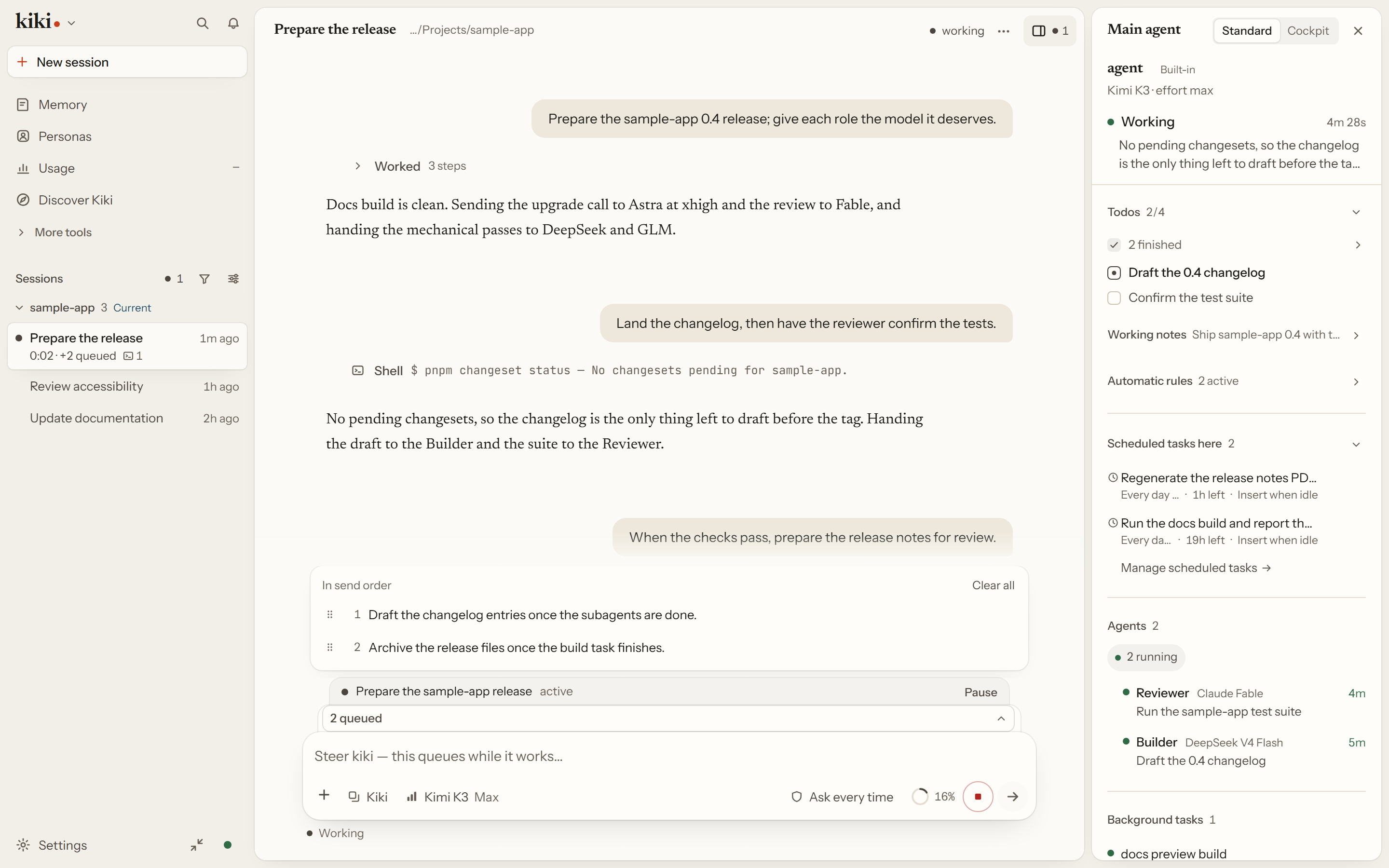
Kiki is an open-source AI agent workbench that runs on your machine. Hand it a folder and the outcome you want — an unfamiliar codebase mapped out, a stack of PDFs and spreadsheets cross-checked, a report drafted, or a multi-file engineering change shipped — and the lead session plans the work, dispatches separable parts to subagents, and keeps the target in view across turns.
Work files stay in the folder you pick; sessions, history, and configuration stay in your local Kiki home, and model requests go only to the providers or local servers you connect. The desktop app, the terminal UI (kiki), and the browser UI (kiki web) all connect to the same local daemon, so you can start a task in one window and pick it up in another.
New to Kiki? Start with Installation and First launch, then come back here. Already running it? Browse by what you want to get done — each section below matches the left sidebar and links to the dedicated feature page and settings entry.
Multi-model & parallel work
When a job outgrows a single turn or a single model, Kiki splits the work across specialized roles and models while keeping long-running goals and project memory intact.
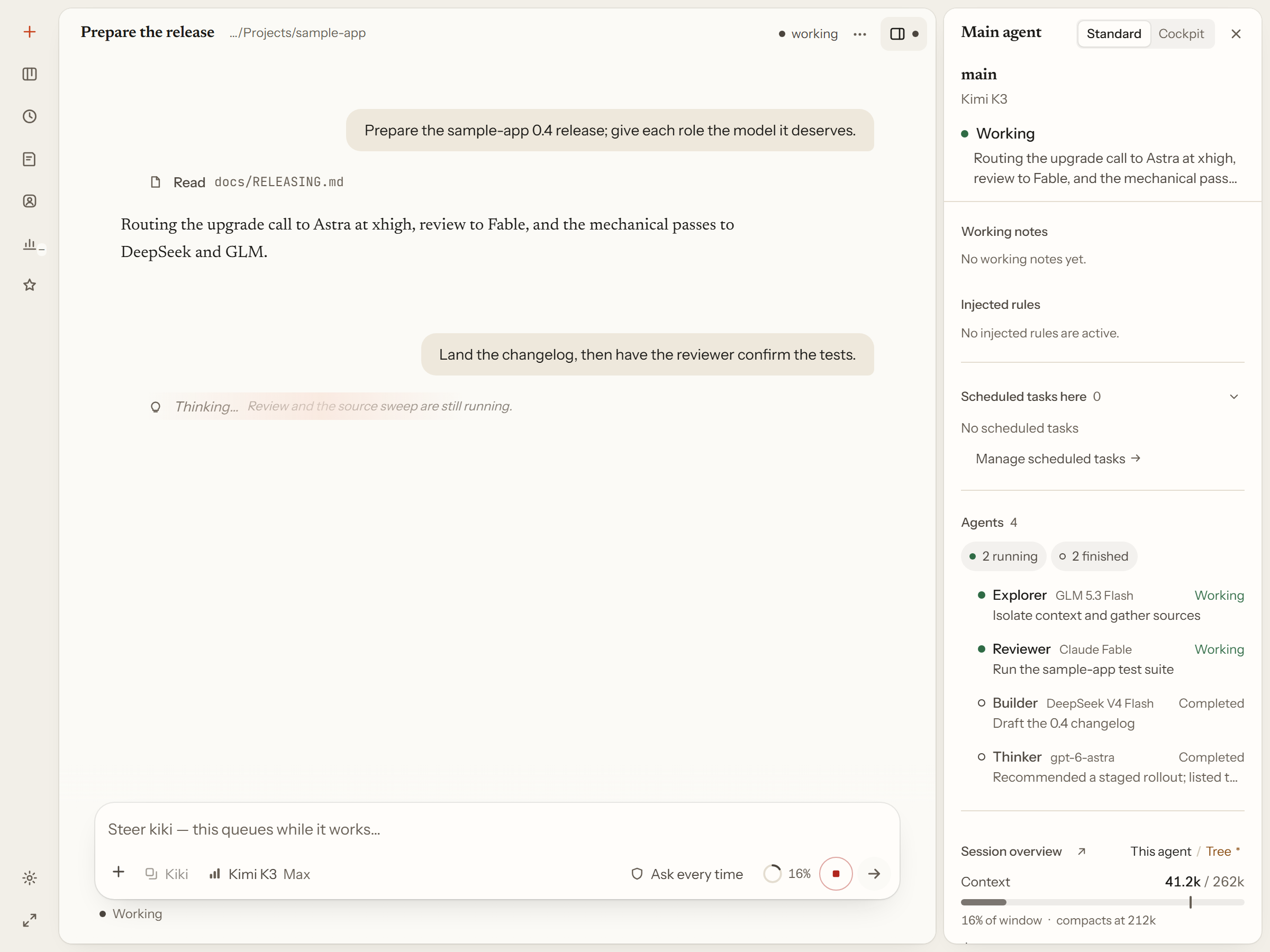
- Subagents & Multi-Model: the main agent dispatches isolated subagents and lets you bind planning, exploration, and review to different models or vendors in the same session. Open any subagent to read its transcript or message it directly, while background tasks notify the lead session when they finish.
- Agent Profiles: each role is a plain Markdown file defining its model, thinking effort, allowed tools, starting system prompt, and permitted child agents. Start from shipped roles and the
implementer/reviewertemplates, or write your own with live hot reload. - Goals, Queues, Cron & Memory: keep an outcome in view across turns with
/goal, queue messages while the agent is busy with per-message delivery timing, schedule recurring local-timezone prompts, track workspace requirements on the optionalkiki-task-board, choose context renewal (Summarize,Fresh,Auto), and manage undoable memory across global, workspace, and persona scopes. - Personas & Discussion Rooms: give a standing collaborator (Persona) its own identity, isolated memory, and fixed daily conversation entry, or pull two to six personas and existing session threads into a moderated room under a host and a message budget.
Browser & computer control
When work moves beyond local files into live web pages, signed-in dashboards, or desktop software that has no API, open Browser & Computer Control to set up and enable what you need. Kiki's browser driver, any independent browser it starts, and computer control run on the Kiki server machine, while you can also attach to an existing local or remote browser.
- Browser control: after component setup and per-browser approval, agents can open pages, read snapshots, click, fill forms, and take screenshots. Drive your everyday signed-in browser through the Kimi or Codex browser extensions, run a Kiki-managed independent browser with isolated cookies, connect a self-installed Ego Lite setup, or attach over CDP to an existing local or remote browser.
- Computer control: two desktop control paths, both requiring your manual installation and approval — install the pinned open-source executor under Settings → Computer control (models default to CLI, API, scripts, and browser tools unless you ask for desktop control or switch the preference to Prefer), or install the Kimi Computer Use plugin (silent background clicks and typing on macOS; interactive desktop control on Windows).
Documents, data & media
Through Plugins, Skills, MCP & Search, equip the workbench with document extraction, Office editing, structured datasets, media generation, and inspectable web retrieval:
- Local document extraction and Office files: install on-demand plugins from the Official catalog —
Kiki Extract(local PDF, Office, HTML, and text to Markdown without modifying originals),Kiki Office Suite(create and edit local Word, Excel, and PowerPoint files),Kiki Work(audit CSV/TSV keys and reconcile two tables locally without uploading), andKiki Writing(manuscript panel and draft commands). - Structured datasets, external services, and media generation: install
Kimi Datasourceto query stock markets, macro indicators, corporate records, academic papers, and Chinese law in natural language; connectKiki Notionto search and write back to Notion; or configure image, video, and speech providers underKiki Media. - Inspectable web search, fetch chains, Skills, and MCP: use
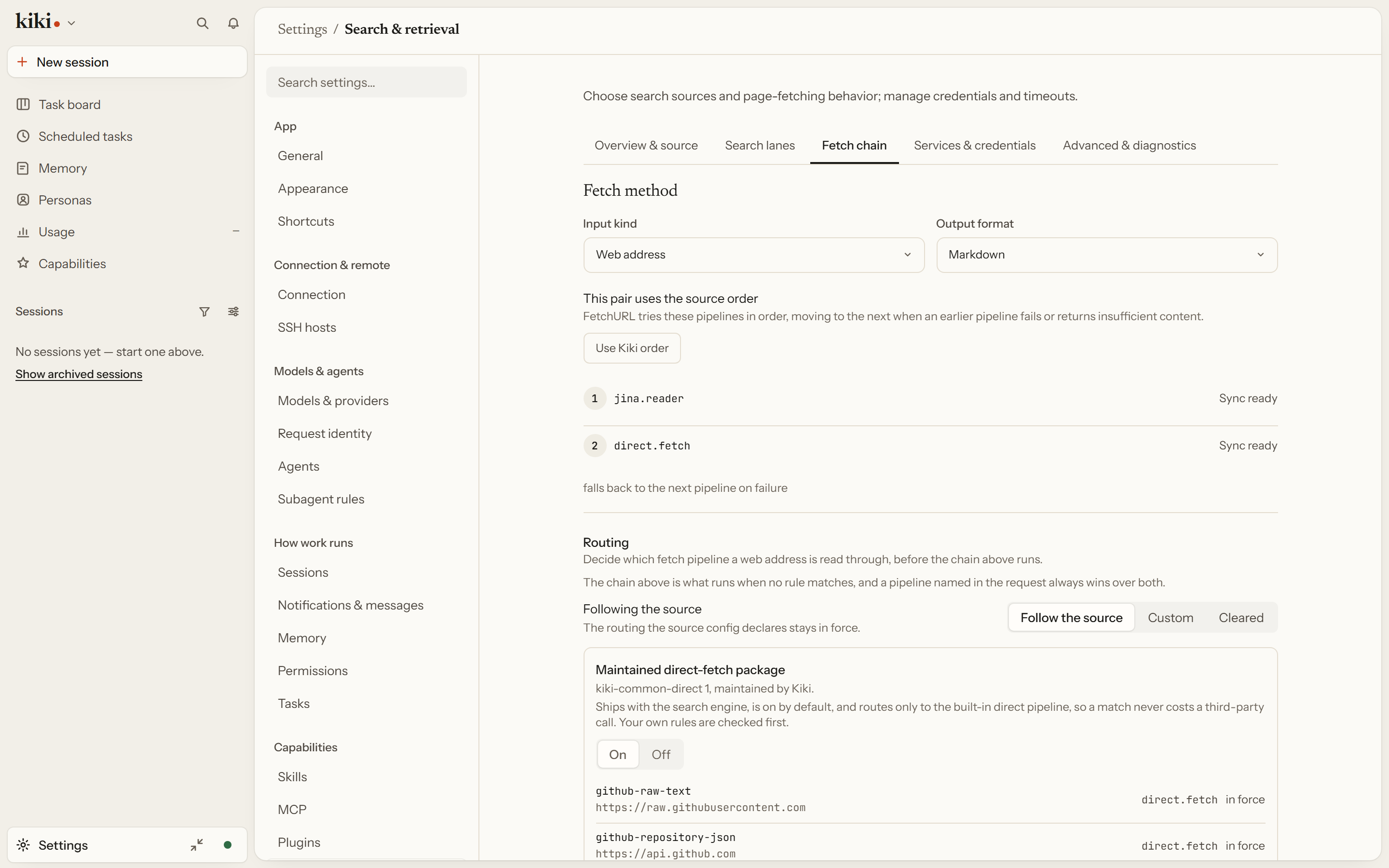
WebSearchto find pages andFetchURLto read their contents. The default lanes work without a key, and you can connect specialized lanes for repositories and docs. In Settings → Capabilities → Search & retrieval, inspect credential sources, key rotation, and the exact sequence of extractors and fallbacks a URL passes through. Package reusable workflows as Markdown Agent Skills, or connect external tools overstdio,HTTP, orSSEvia MCP.
Usage, models & permissions
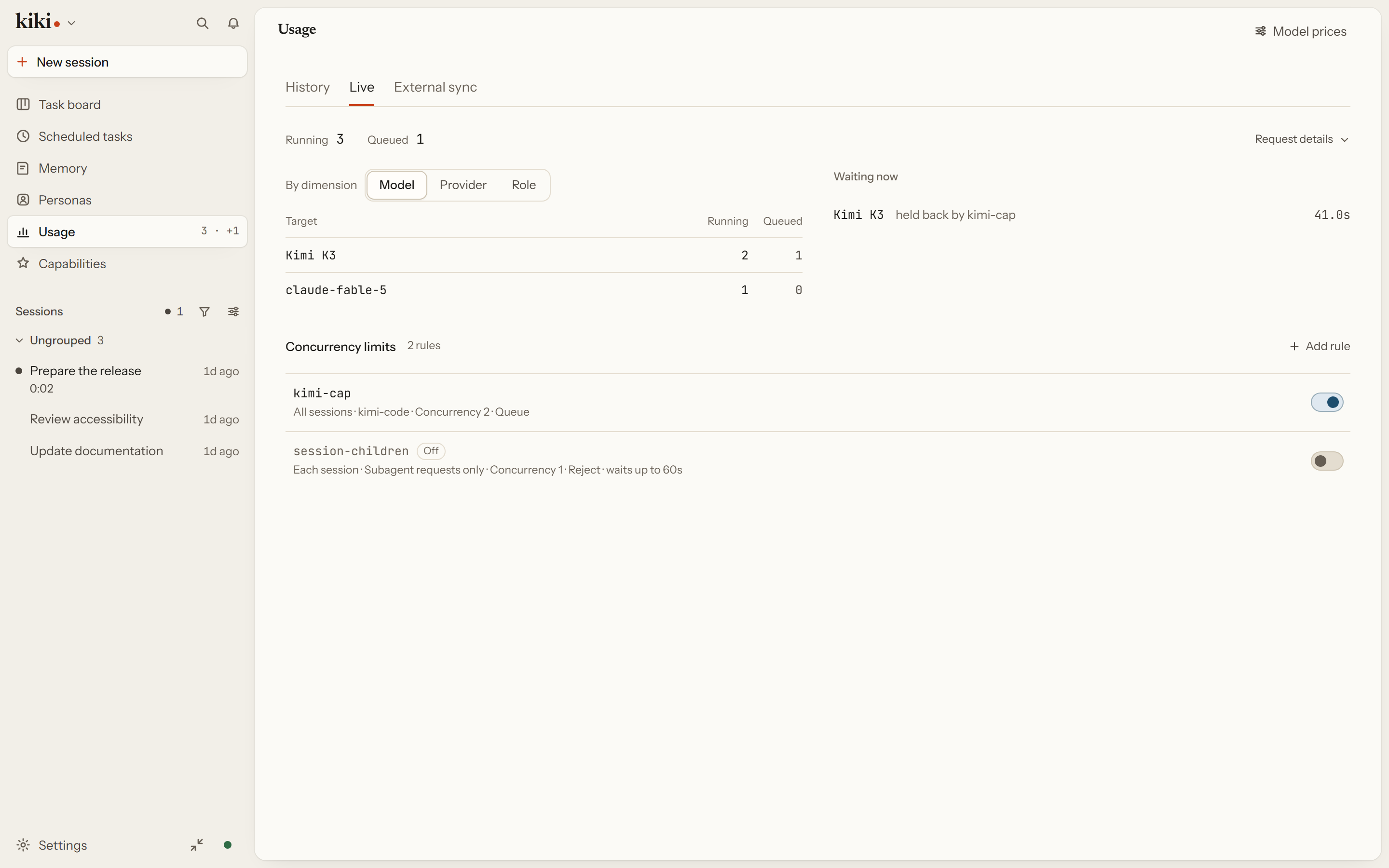
What the agents are doing, what they cost, which rule is holding a waiting request back, and the exact prompt text a model receives are all visible and editable in the workbench.
- Timeline, Approvals & Usage: folded tool steps, message annotations, the "Needs you" approval tray, and the focus-following right rail keep busy sessions readable; the Usage page shows historical cost with honest completeness flags rather than fake zeros, live concurrency rules (with rule IDs) holding waiting requests, remaining account quotas, and consented content-free external sync.
- Models, Prompts & Permissions: manage API keys, OAuth subscriptions, and local servers in one list, including reusing an existing local ChatGPT (Codex) or Grok Build app sign-in after Check this machine; override prompt fields down to a single tool description (
kiki prompt-fields), and govern actions with four permission modes (manual,auto,review,yolo), Plan mode, and lifecycle Hooks. - Skins, Fonts & Backgrounds: choose from six built-in light and dark skin families (plus appearance packs and TUI themes), tune accent color, font, radius, and density live, or set a local image or video background with automatic text-contrast protection.
Phone, remote & tools
Sessions and configuration stay in your local Kiki home by default, and connect across workspaces, machines, phones, and external harnesses only where you open a door.
- Spaces, Remote Links & SSH: separate work and personal setups with Spaces (shared or isolated credentials, plus Work mode presets); connect two Kiki homes over mutually approved one-way remote connections or message-only thread bridges; open your workbench to another browser with single-use
kiki weblinks; or attach SSH hosts to a session to edit remote files over SFTP and run remote commands. - Phone Session: pair a WeChat account by QR code or connect a QQ bot under Settings → Notifications & messages to route chats to a persona or session; send messages from your phone (queued or steered into the active turn), read replies, and answer pending questions and approvals with option numbers.
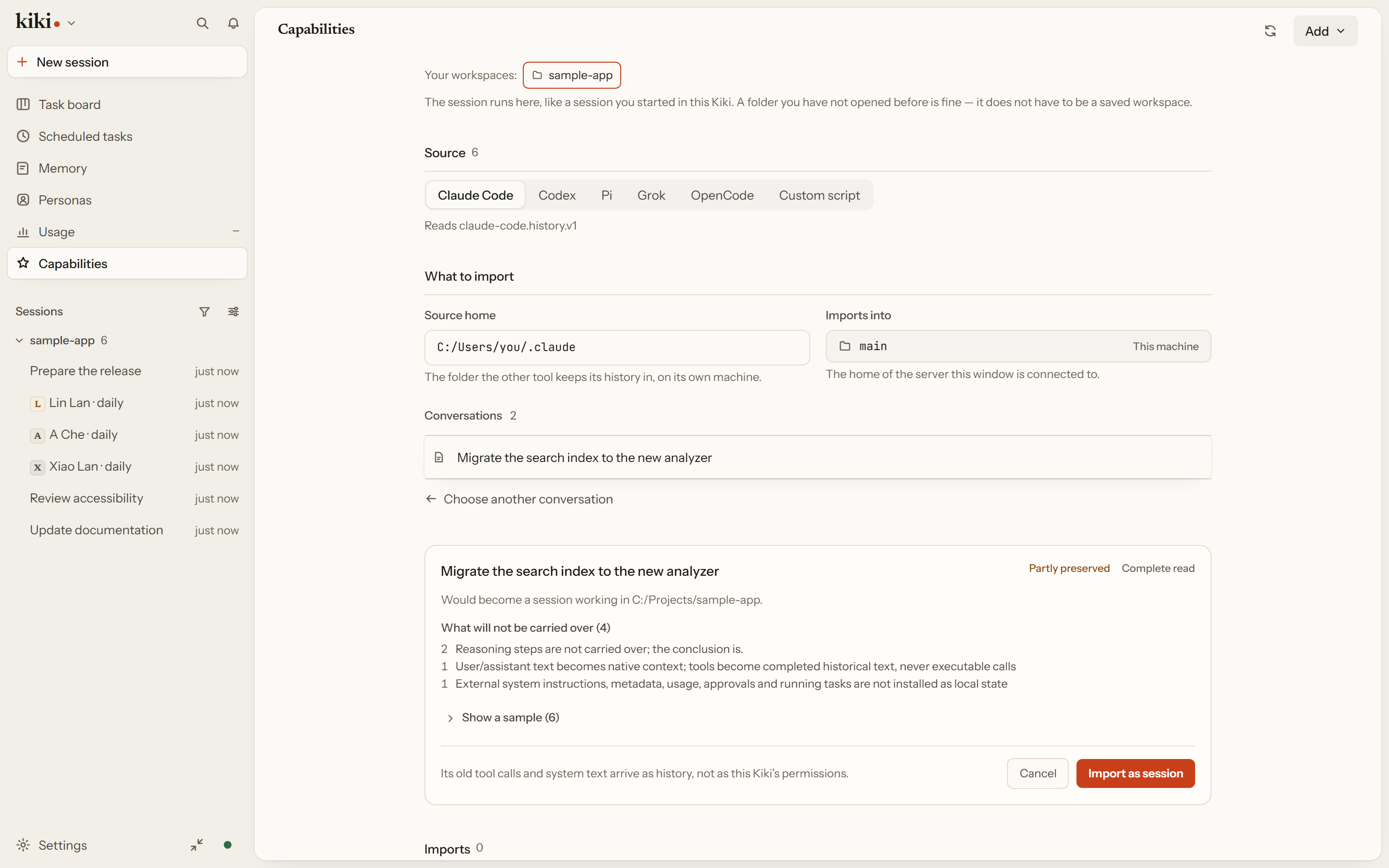
- History Import, IDEs & Engines: preview and import conversations from Claude Code, Codex, Pi, Grok Build, or OpenCode as continuable sessions or read-only archives; drive Kiki inside Zed, JetBrains, and other IDEs over
kiki acp; fix an inbound MCP seat withkiki seat; or run subagents on external harnesses with Kiki context bridging.
How Kiki compares
Kiki (kiki-agent) — Multi-Model AI Agent Workbench runs alongside terminal coding agents such as Claude Code and OpenAI Codex CLI and editor extensions such as Cline rather than asking you to replace them. The table below shows where each category is centered.
| Dimension | Kiki (kiki-agent) | Claude Code / OpenAI Codex CLI | IDE agent extensions (e.g. Cline) |
|---|---|---|---|
| Primary focus | Local multi-model workbench for code and document folders (MIT) | Terminal-first coding agent from a model vendor | Coding agent embedded inside an editor |
| Multi-model dispatch | Each subagent in a dispatch tree binds its own model or vendor | Centered on the vendor's model family | Configured per mode or provider in the extension |
| Surfaces & mobile | Desktop GUI, kiki (TUI), and kiki web on one local daemon, plus WeChat / QQ bridge | Terminal CLI and vendor-shipped surfaces | Editor window and companion CLI |
| Long-running & multi-role | /goal mode, message queue, cron schedules, personas, and moderated rooms | Interactive turns, subagents, and background tasks | Plan/Act turns and subagents in the workspace |
| Prompts & governance | kiki prompt-fields down to one tool description; Usage names the rule holding a queued request | Project instruction files and CLI settings | Extension system prompt and rule files |
Kiki also works with these tools instead of only beside them. History import previews conversations from Claude Code, Codex, Pi, Grok Build, and OpenCode and brings them in as continuable sessions or read-only archives. kiki acp runs Kiki inside Zed, JetBrains, and other ACP (Agent Client Protocol) clients. kiki seat fixes an inbound MCP (Model Context Protocol) seat so Cursor, Claude Code, or Codex can call Kiki as a service, with the workspace, permission mode, and model set before they connect. Going the other direction, an agent profile can run a subagent on an external harness as its engine, so one dispatch tree can mix Kiki's own agents with the tools you already use.