
Timeline, Approvals & Usage
The workbench is one window, but the work is not: a turn runs, a subagent finishes, something needs your approval, and the cost adds up. This page is about the parts of that window you look at every day — the timeline that stays readable, annotations you can leave on a message, the tray that collects what needs you, the right rail that follows whichever agent you are focused on, and the usage page that tells you what it cost, what is holding a request up, and where those numbers can go.
Step-folding timeline
A long agent turn is mostly tool calls, thinking, and shell output. The conversation view folds finished stretches of it into one line such as "Worked · 8 steps", and you can expand any fold back in its original order. The live turn and finished subagents fold the same way, image results keep a row of their own, and failed or cancelled entries always stay visible on their own.
Resolved questions, approvals, markers, and completion notices stay inline at their original position as compact one-line entries. Consecutive entries fold into an expandable "Activity history" row, and consecutive identical marker dividers (such as goal updates) show only the latest one with a repeat count, for example "Goal updated ×12", when nothing separates them. Reopening a session shows model changes as dividers naming the previous and new model; changing only thinking effort does not add one.
Long tool output loads by itself as you scroll: Kiki keeps reading the next segment in the background and the row under the body shows the progress. If a segment fails, it stops there and offers Retry, and where the server keeps an original for that field the same row offers Download original to save the field's full content to your machine. See Interface overview.
Message annotations
You can attach an annotation to a message in the timeline and send it along with your next message, rather than interrupting with a separate turn. The composer keeps a count of the notes you are carrying, and the note markers stay on the messages they belong to, so a later reader can see what you pointed at and why. Reopening a note brings up the same anchored editor you wrote it in.
Annotations are for the desktop and browser composer; the terminal equivalent is a normal message or a ! shell command in the same turn. See Interface overview.
"Needs you" tray
Approvals and questions do not scatter across the timeline as they arrive. They collect in a tray above the composer: an approval you can act on, and non-blocking questions folded into a "one more item" line until you open them. When something is waiting, the composer card gives it over, and your unsent draft comes back intact when it is resolved.
That is also where the "send timing" menu lives while the agent is busy, so a decision and a queue adjustment are in the same place. Approvals themselves — the modes and what each one allows — are covered in Interaction and input.
Focus-following rail
The right panel describes one agent at a time: whichever you last clicked into or focused. The main agent and every subagent get the same page, and the same rail follows you into a subagent's transcript.
It shows the agent's head over what it is doing now, "needs you" items as plain rows you can decide from, the activity feed, and a folded capabilities block. That block's Subagents list names each child profile and route, and whether that child can be launched. Who may be started is Child agents on the profile — see Dispatch capabilities. On wide windows the panel is open by default, and Standard / Cockpit in the header lets it temporarily take over the preview space; exiting cockpit restores your previous preview content, tabs, draft, and width.
See Interface overview and Session controls.
The usage page
Usage in the sidebar opens on Live. The tabs are Live, History, Quotas, and External sync, in that order. Live answers why nothing is moving, History answers what a date range cost, Quotas answers what a configured provider account still has, and External sync answers where you want the numbers to go. An address that already filters history opens History. See Usage.
History & cost
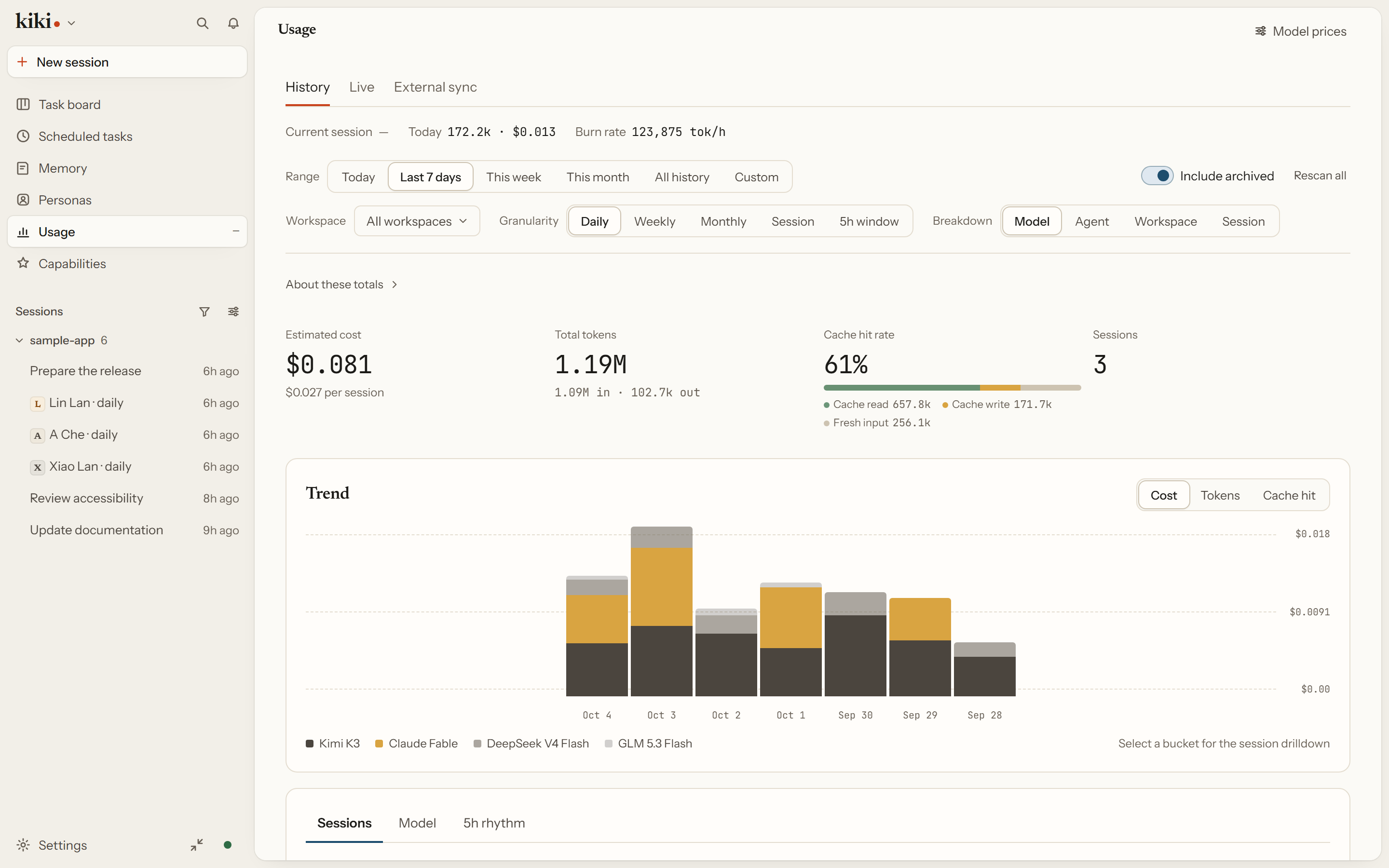
History is the date-range view: token usage and estimated cost, starting at today. The filter bar drives it — range first, then workspace, bucket size, and what the chart is broken down by — and every choice rides the URL, so a view you settled on is a link you can paste. Under the four totals, the trend chart stacks by the breakdown axis, a bucket opens into the sessions and turns behind it, and the tabs below rank sessions by cost so the expensive one is the first row.
The number it will not give you is a confident wrong one. Token usage and cost carry separate completeness indicators: when a provider does not return usage for a call, Kiki marks it unknown rather than recording a real zero, and a figure with unknowns in it is shown as partially unknown instead of a total. Data reliability then separates the cases a reader must not confuse — a provider that never reported, accounting that is incomplete, a range with nothing in it, and a request that failed. The cost itself is a local estimate from your own price table; Model prices in the header is where an unpriced model gets one, and the page names the models it could not price rather than quietly pricing them at zero.
Live rules & queues
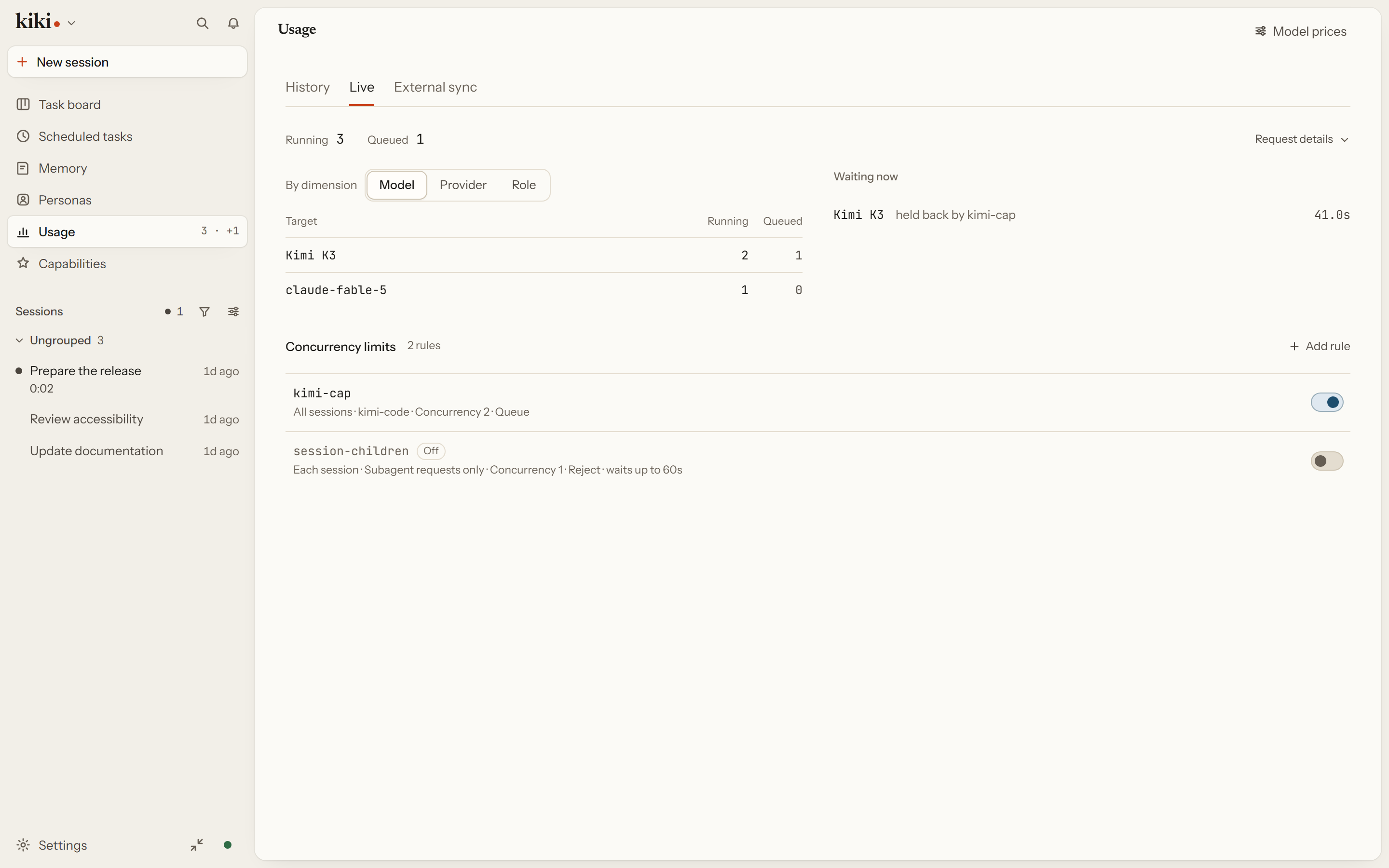
Live is the other half of the same page, and it answers the question a spending page raises the moment something feels slow. It counts what this Kiki service is running and what it is holding, and Request details breaks those counts down by model, provider, or role.
The part that makes it useful is the Waiting now list. Each waiting row names the model, how long it has been waiting, and which concurrency rule is holding it back, by rule id. That id is the same one in the Concurrency limits editor directly below, so the row tells you which rule to change.
A rule picks a target (specific models, specific providers, or everything), a scope (All sessions shares one budget across the service; Each session gives every session its own), a cap, and what happens past it: Queue waits for a slot, Reject fails the request immediately. A rule can also carry a wait budget, and a rule targeting only subagents is a switch away. The toggle beside a rule pauses it without deleting it or dropping its wait budget, and saving applies to new and queued requests without killing anything already streaming — which is why raising a cap can release a queue while lowering one can leave running requests briefly above the new limit.
Two boundaries worth knowing before you tune this. The cap counts requests, not tokens, money, or agents — it is not a spending budget. And it governs model requests this Kiki service sends itself: when you hand a turn to Codex, Claude Code, or Grok Build as the engine, those requests are the engine's own and do not pass through these rules. An external tool that calls back into Kiki to run a native request does count, as Kiki's own.
External sync
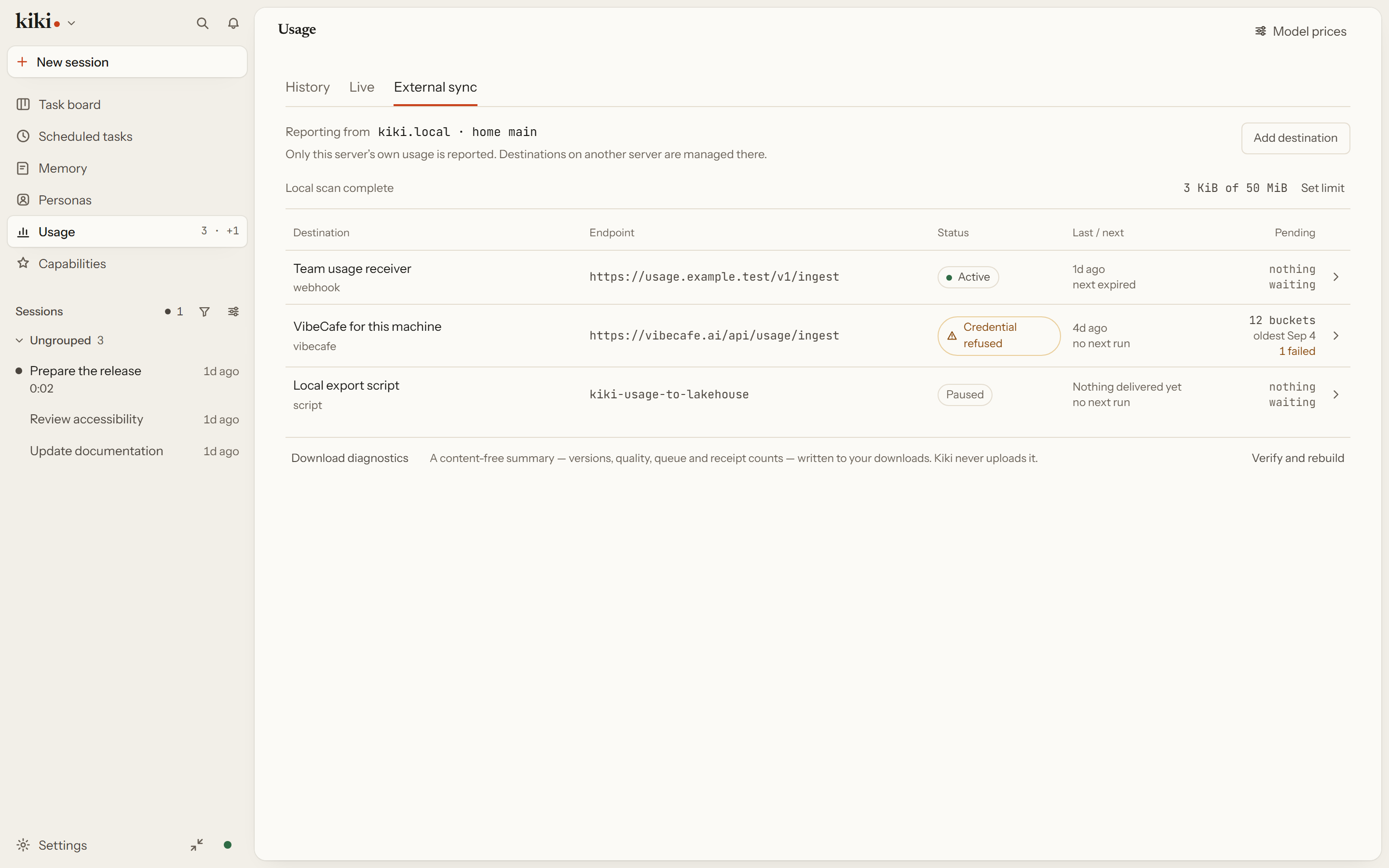
External sync sends this server's own usage to a destination you pick, on a schedule you pick. It is the tab for a person who wants their token counts somewhere other than this app: a team warehouse, a personal script, or a hosted service. Three kinds of destination are available:
- Kiki webhook — your own HTTPS endpoint, receiving a documented JSON batch. Bearer or HMAC authentication, optional gzip, and a secret you can keep in the system keyring or, if you prefer, in a private file on the server; you may narrow the range, exclude workspaces, and keep temporary sessions out.
- VibeCafe — signs in from the page itself with a device code, against the official service. A custom address, or a key you supply yourself, is a separate advanced path. The device-code flow is implemented, but it has not yet been verified end to end against the live service.
- Script — a command you approve. Kiki writes the batch to its stdin and reads a receipt from its output. It runs as your own OS user with your ordinary permissions, so it can read files and reach the network on its own; this is not a sandbox, and approval is per command, not per batch.
What crosses the wire is deliberately small: the model, a UTC half-hour bucket, four token counts, a quality flag, and a local cost estimate. Prompts, answers, titles, workspace names, and paths are not part of the payload — though the receiving end can still see your address and when you work, and the model name it sees may be an opaque id rather than your local alias. Every destination shows its own state: active, paused, waiting to be sent, refused credential, or a service that already holds a different value. A pause keeps the queue; removing a destination asks separately whether to discard what is still pending.
External sync needs no experimental switch. Without a destination nothing is sent, and a saved destination stays disabled until you preview the exact payload, agree once, and enable it. Widening the range, changing the endpoint, or pointing the destination at a different credential asks again; narrowing the range or changing the interval does not.
The same destinations can be managed from the terminal with kiki usage-export, and every control on this page has a documented field, error code, and limit behind it: see Usage for where each control lives and request_governance for the rules' full field reference.
Next steps
- Interface overview — the full tour of the window
- Settings pages — where each control lives
- Subagents & Multi-Model — what the agents in the rail are doing