
Goals, Queues, Cron & Memory
Some work does not fit in one turn. It spans a morning, or a week, or it depends on a schedule. This page covers the parts of Kiki built for that: goals that carry across turns, the queue for what you type while the agent is busy, scheduled tasks for work that outlives a session, the optional task board plugin, the context window that decides what happens when a conversation fills up, and memory for the facts that should survive all of it.
Cross-turn goals (/goal)
A normal prompt says what to do next; a goal says what must become true. Start one with /goal and the agent keeps working toward it across turns, checking the goal's own states after each turn — complete, blocked, paused, or still active. You can edit, pause, and cancel the goal as it runs.
Goals work best when the objective names the result and the evidence that proves it — including when the first clue turns out not to be the root cause, because the goal describes the outcome and the agent adapts on the way. They are worth avoiding for broad topics with no finish line, for work already known to be impossible, and for objectives too ambiguous to judge complete. See Using goals for when to use them and how to manage the lifecycle.
Message queue & timing
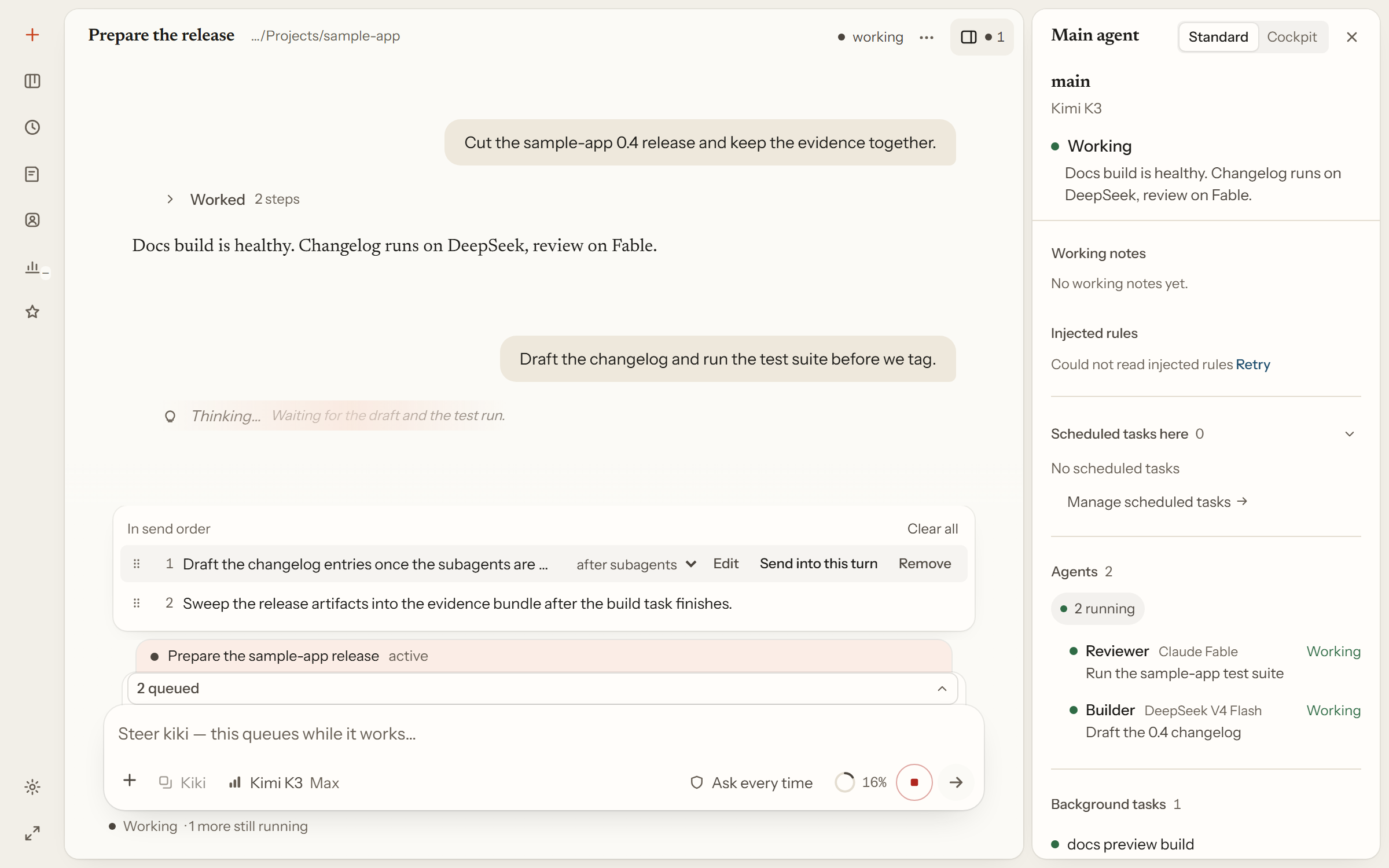
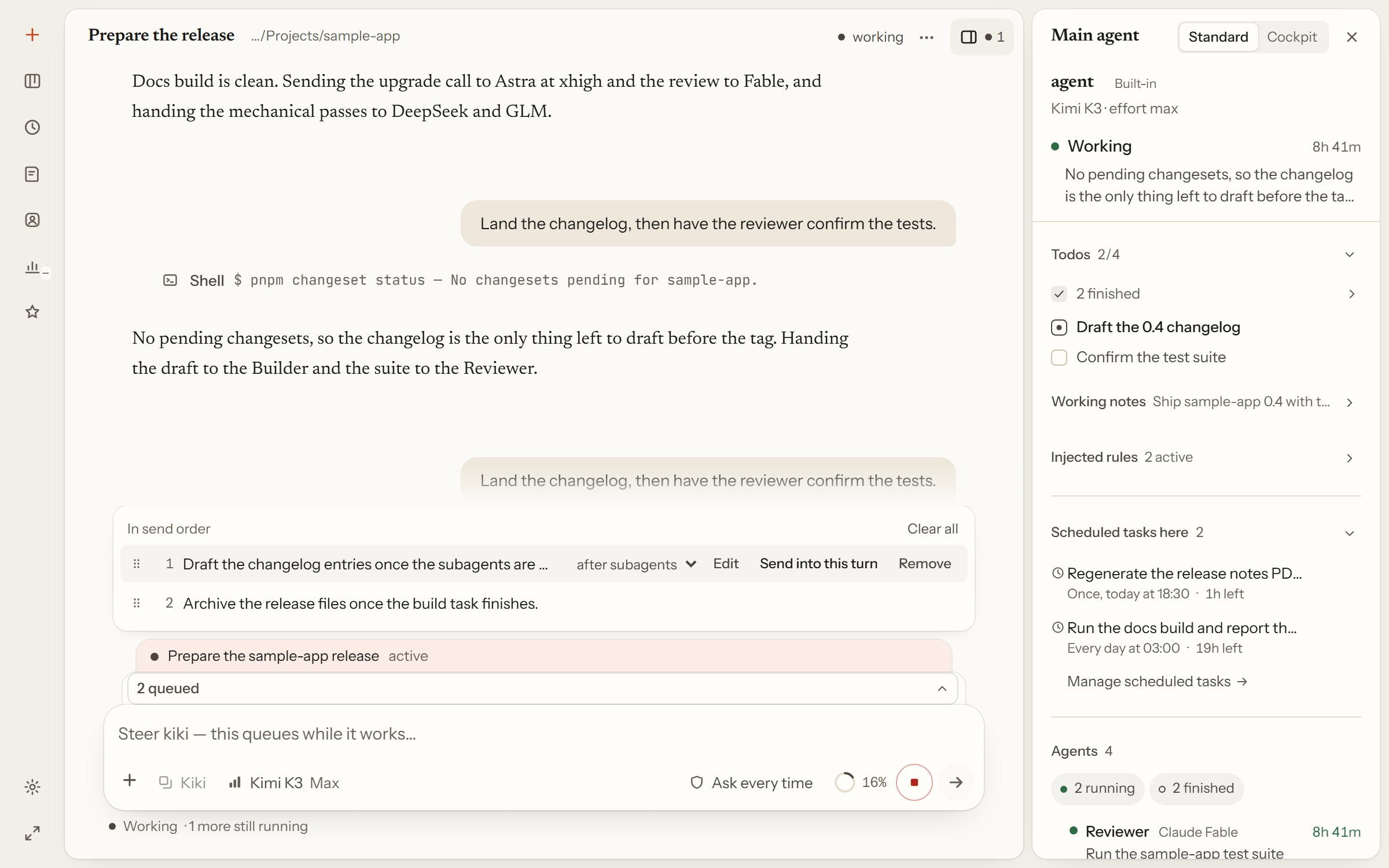
While the agent is busy, a new message joins a queue above the input box instead of interrupting. Each queued message carries its own send timing: when idle (as soon as the agent finishes its turn), after subagents (once the running subagents finish), or after tasks (once all background tasks finish). You can change the timing, edit the text, reorder, or send one right away from its row.
Hovering the send button (or focusing it and pressing ↓) opens the same choices, plus the option to deliver the message into the current turn at the next safe step boundary — the same as Ctrl-Enter. The timing choice applies only to that message and does not change the default. After a restart, restored queued messages wait for confirmation: Send now sends one, Resume queue releases them all.
The full behavior is described in Interface overview.
A scheduled task set to Queue joins this queue alongside your own messages, labelled Scheduled job. A task set to Insert when idle or Insert immediately appears here too, with the timing that holds it named on its row, but it is not one of your waiting messages: its text stays readable and removable while the reorder and send-now controls are absent.
Scheduled tasks & board
Scheduled tasks carry work beyond a single conversation. They are listed globally rather than per session. The task board is not that list: it is an optional plugin, and its cards are workspace requirements.
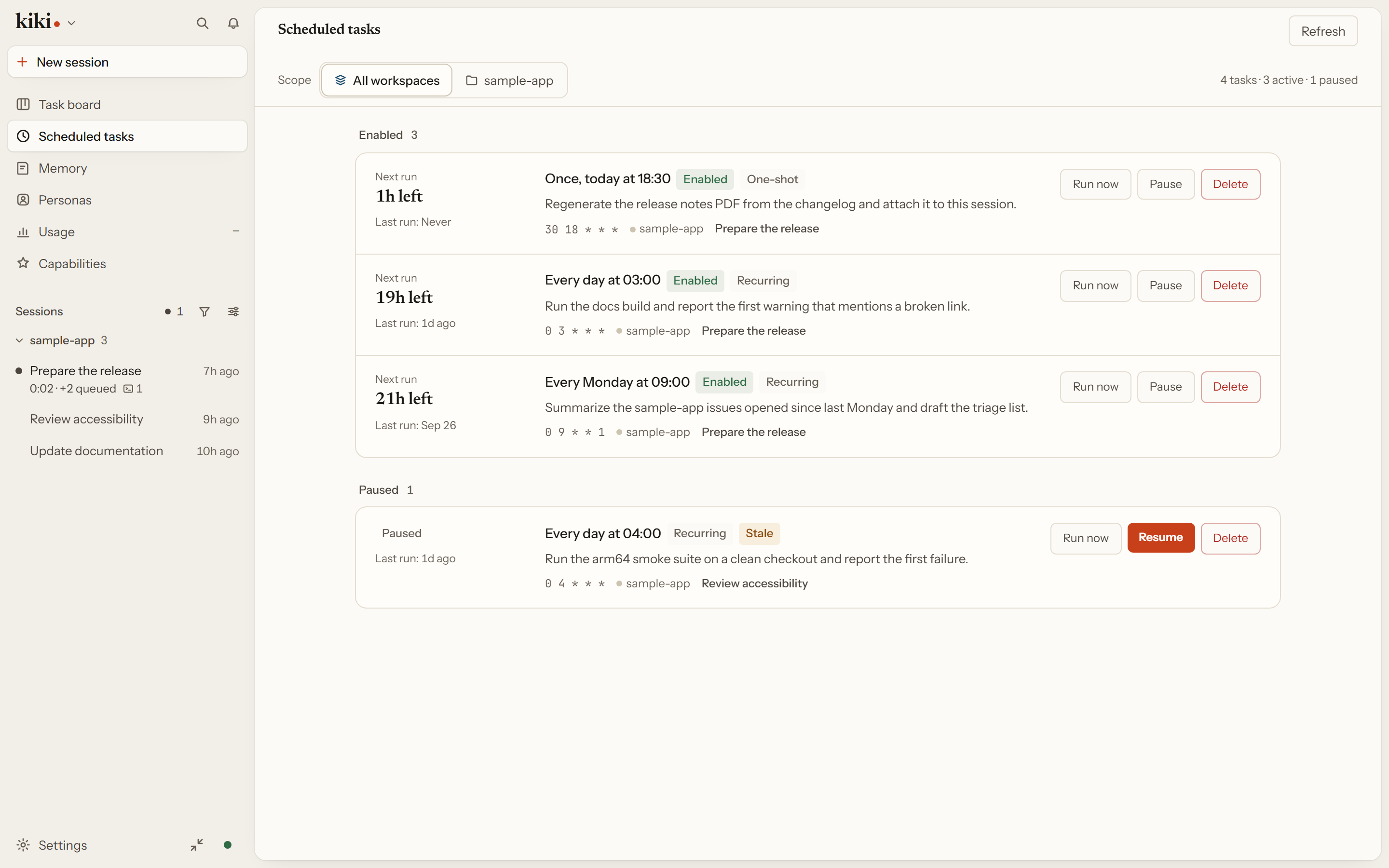
Scheduled tasks. The agent can schedule a prompt to fire at a future time, either once or on a cron expression in your local timezone, and a global panel lists every schedule. A schedule is ticked by a Kiki that has its session open — the interactive daemon or server, or a print run for the sessions that run already has open. It does not scan the rest of the home or wake a closed session, so a schedule only fires while some Kiki is holding that session. Recurring tasks are shifted forward by deterministic jitter so everyone does not fire on the hour, and one that missed fire times fires once with the missed count. Schedules are bound to their session and do not carry into a brand-new session, and a session holds at most 50 active ones. See Scheduled tasks.
Editing schedules
The scheduled-tasks page is also where you change a schedule yourself. Every entry leads with when it runs, in words rather than a cron expression: "every hour on the hour", "every day at 09:00", "every Monday at 08:30". The expression is still there, one click away in the entry's detail panel, along with the prompt in full, the owning conversation, and the moment the server computed for the next run.
New scheduled task creates one, and Edit changes one. The form asks whether the task runs once or on a schedule, then for the repeat: every N hours, a time each day, days of the week, or a day of the month. You pick the conversation it belongs to, searchable by title and grouped by workspace, because that is where its output arrives.
Delivery timing says what firing the prompt does to that conversation, because the schedule alone cannot. Insert when idle (the default) waits for the current work to finish, then goes ahead of the messages already waiting in the queue. Queue waits its turn alongside those messages, in the order you sent them. Insert immediately has the conversation read the prompt at its next safe step, without stopping the request already in flight. Only Queue produces an ordinary queued message: a task set to Insert when idle or Insert immediately is held outside that send order, so it is not counted with your waiting messages and offers neither the reorder handle nor send-now — it keeps its text readable and its timing named on its row, and you change that timing on this page.
A schedule more specific than those controls — several times a day, a day of the month pinned to a weekday — opens on the cron expression itself and is saved exactly as written. Editing such a task never quietly turns it into a simpler rule. A save the server refuses leaves everything you typed in the form, so a rejected change costs you nothing to retry. Changing the schedule, the prompt or the conversation leaves the delivery timing exactly as it was.
Run now sits on its own line at the bottom left of an entry, away from pause and delete: it runs the prompt once without touching the schedule. Rebinding an existing task to another conversation stays inside the task's own workspace.
The task board. Install the optional official plugin kiki-task-board to keep workspace requirements as cards. Existing cards stay in their original storage location; reading a card does not change it. Without the plugin there is no board entry, but conversations that used it still open and accept ordinary messages. See Task board.
Context renewal
As a conversation grows, Kiki compresses the history when the context approaches the window limit. You decide where that point is, and what happens when it is reached.
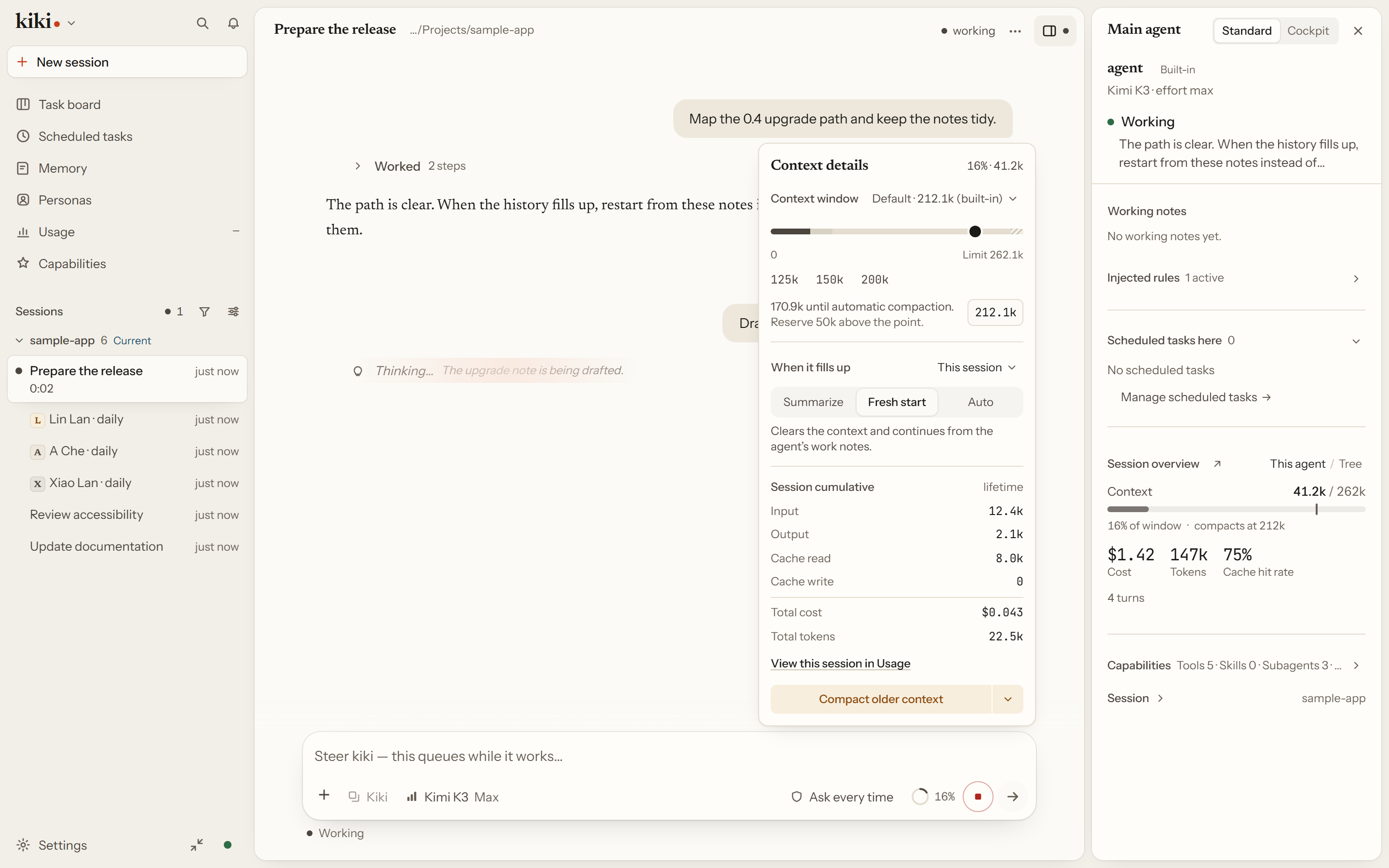
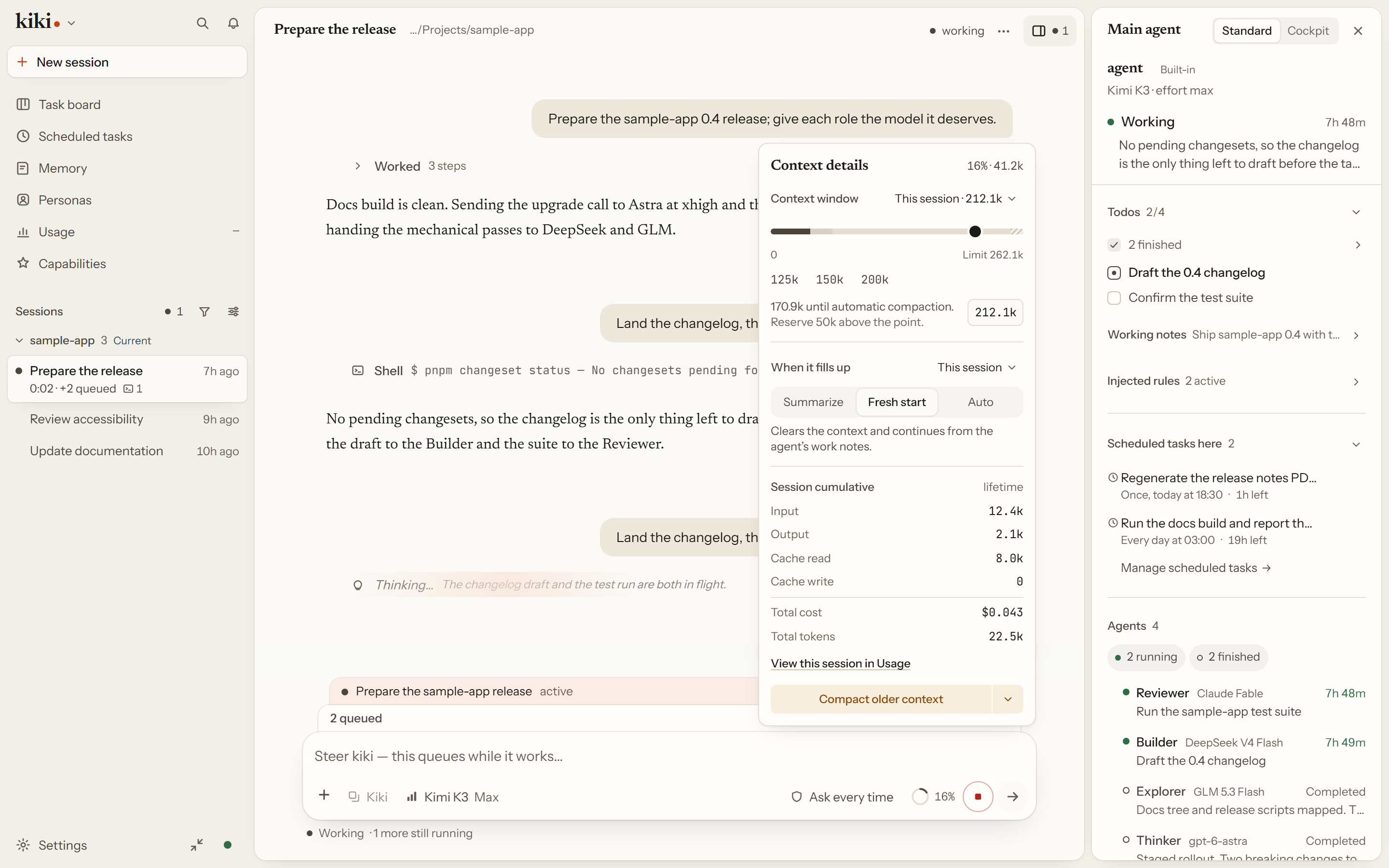
The context meter sits below the composer. Opening it gives you a detail card with two parts: the context window track (used, compaction point, reserved, and the available ceiling, where you can set the compaction point directly as a token count or a percentage), and this session — cumulative, the input, output, cache-read, and cache-write tokens and the cost so far. In the terminal, /autocompact shows or changes the same compaction point.
The card also holds the renewal strategy — a three-way choice for what happens at the compaction point:
- Summarize — ask a model to summarize the history and keep going.
- Fresh — build a handoff without a summarizing model, keeping selected user inputs, working notes, history references, recent exchanges and usable media.
- Auto (the built-in default for native main agents and subagents) — use that handoff when the conversation can continue within the available window; otherwise summarize.
The source label next to it says which layer the current value came from (session, profile, global, or inherited) and doubles as the control that saves it more broadly or resets it. A session choice takes precedence over its profile, then the global setting, then the built-in default. Subagents can have a separate configured default, and external executors manage their own context; both are read-only here.
Fresh is a context handoff, not a deletion of the conversation. New input after the last handoff, a tool error, or unreviewed notes alone do not force a model summary. Kiki summarizes instead when required user text is neither retained nor recoverable through history, media cannot be carried forward, or the rebuilt context exceeds the available window. A custom compression instruction also uses the summarizing model unless the request explicitly selects a model-free handoff. If saving fails, retrying keeps the prepared result rather than silently changing strategy.
For the manual side, /compact compresses on demand and accepts a hint about what to prioritize. See Context compression and /autocompact.
Cross-session memory
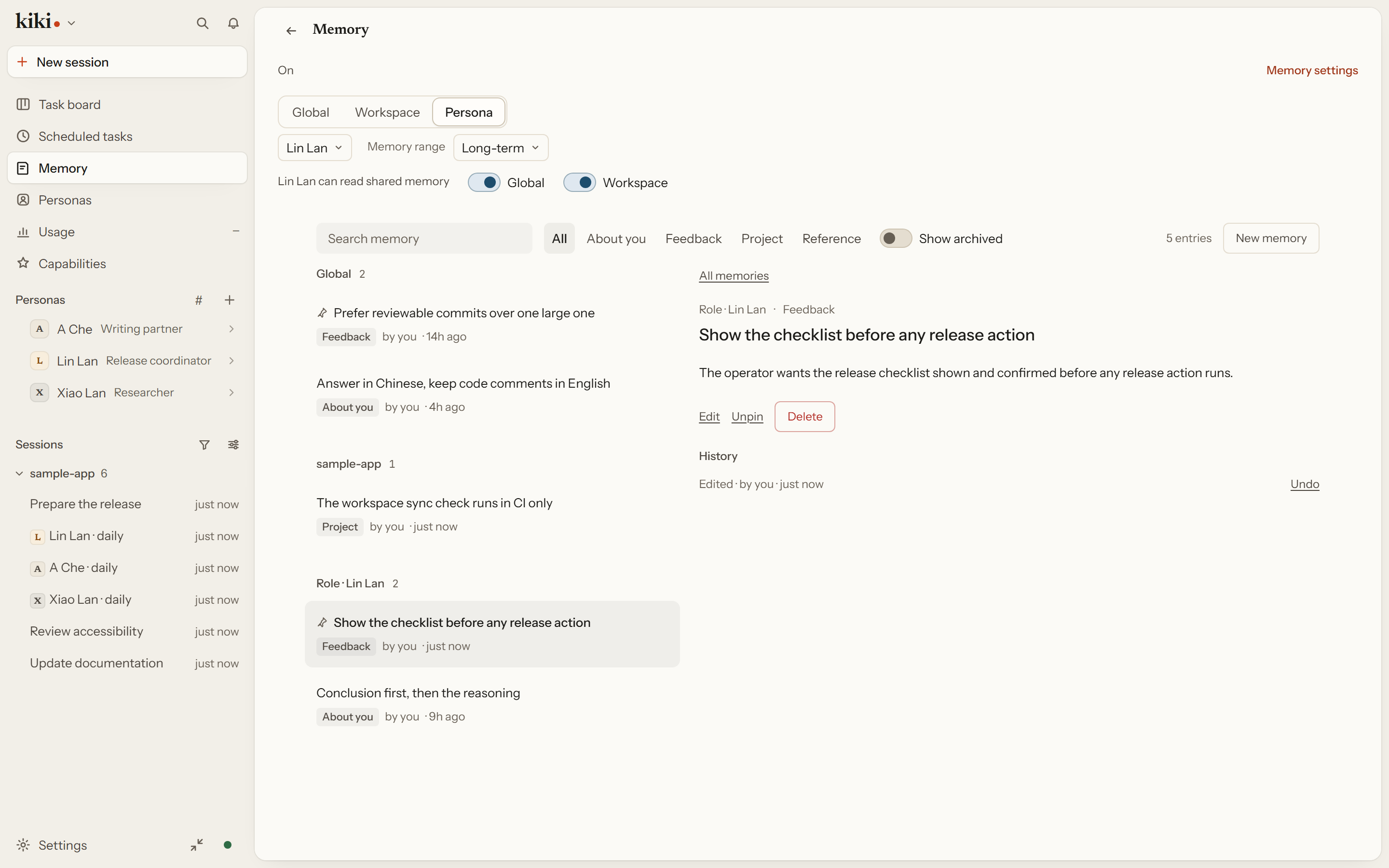
A session ends. Memory is what does not. The agent saves user preferences, feedback, verified project facts, and reference pointers, and finds them again later. On the /memory page you choose which body of memory you are looking at — Global, one Workspace, or one Persona. Persona-specific entries are isolated from other personas; by default a persona can also read the shared global and workspace memory.
Memory is on by default, and the /memory page in the sidebar is its permanent home either way — with memory off it is the turn-on guide, with memory on it is the management console. You can search entries, filter by type, edit, pin, and delete them, and every change can be undone one operation at a time, including a delete. When memory approval is set to review, proposed changes wait in an Inbox tab for you to accept or discard instead of taking effect on their own.
Agents write memory with MemoryWrite and read it with MemorySearch and MemoryRead. See Memory for the full page, the review inbox, and how to turn memory off.
Next steps
- Memory — choosing between scopes, the review inbox, and undoable history
- Using goals — writing and managing goals
- Task board — persistent requirement cards per workspace
- Timeline, Approvals & Usage — the window you use while all of this runs