
Spaces, Remote Links & SSH
Kiki runs where you run it, and the things it can reach are yours to decide. This page covers the four places that reach: spaces, which model the Kikis you open; remote connections, which point one Kiki at another with an approval on each side; thread bridges, which let one Kiki send messages into another without being able to browse it; and Web access, which opens this Kiki in a browser. It ends with in-session SSH, the one reach that is just a session's own resource.
Nothing here is a relay through someone else's server. Sessions live under your Kiki home on the machine the server runs on; a remote connection or a web link is a door you open, with a credential you can revoke.
Spaces & work modes
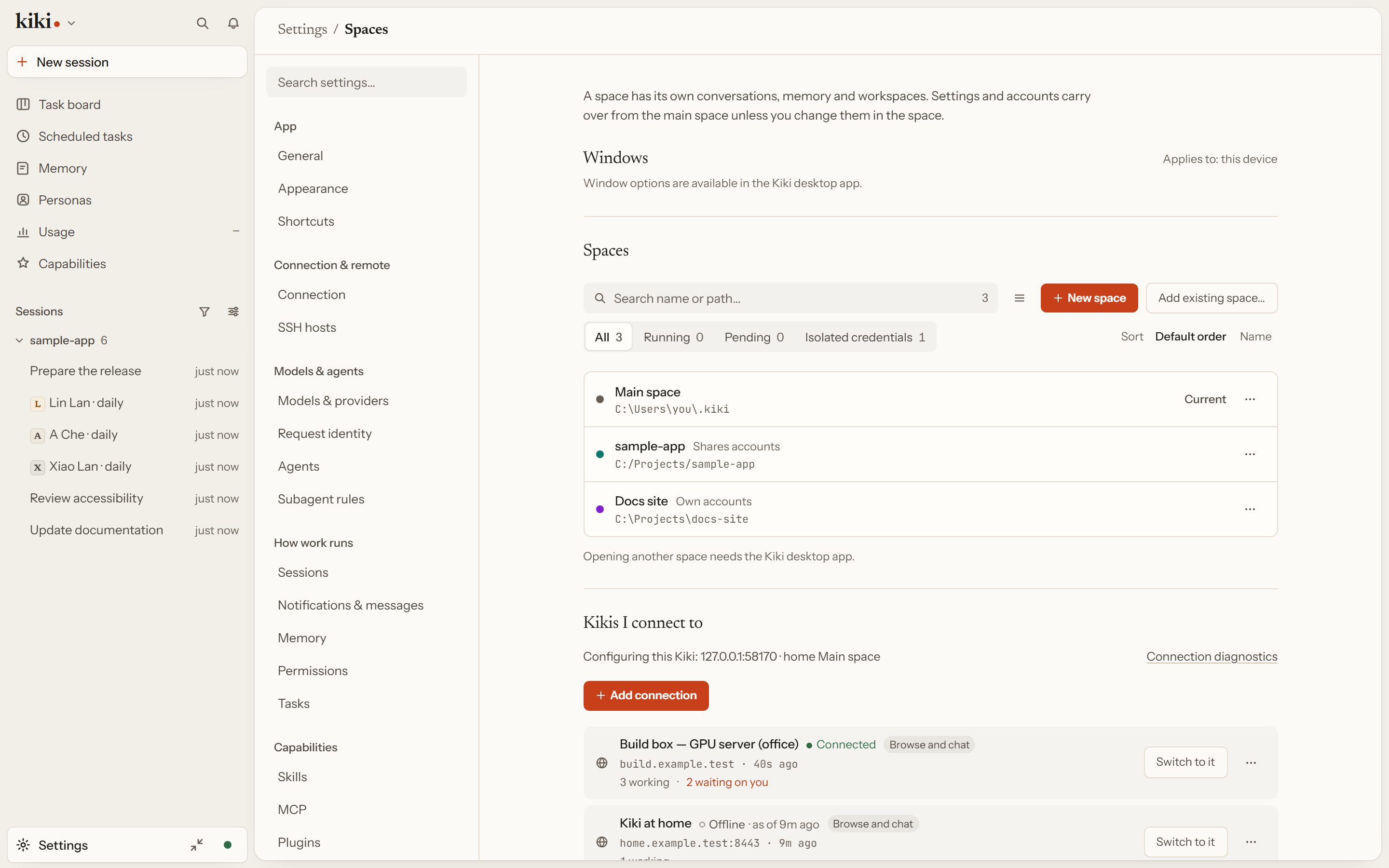
A space is one Kiki you work in. The main space manages the list; the spaces themselves are what you open. Each one can have its own shortcuts, its own window behavior, and its own credential scope, so a work Kiki and a personal Kiki can sit side by side without sharing what they can sign in to.
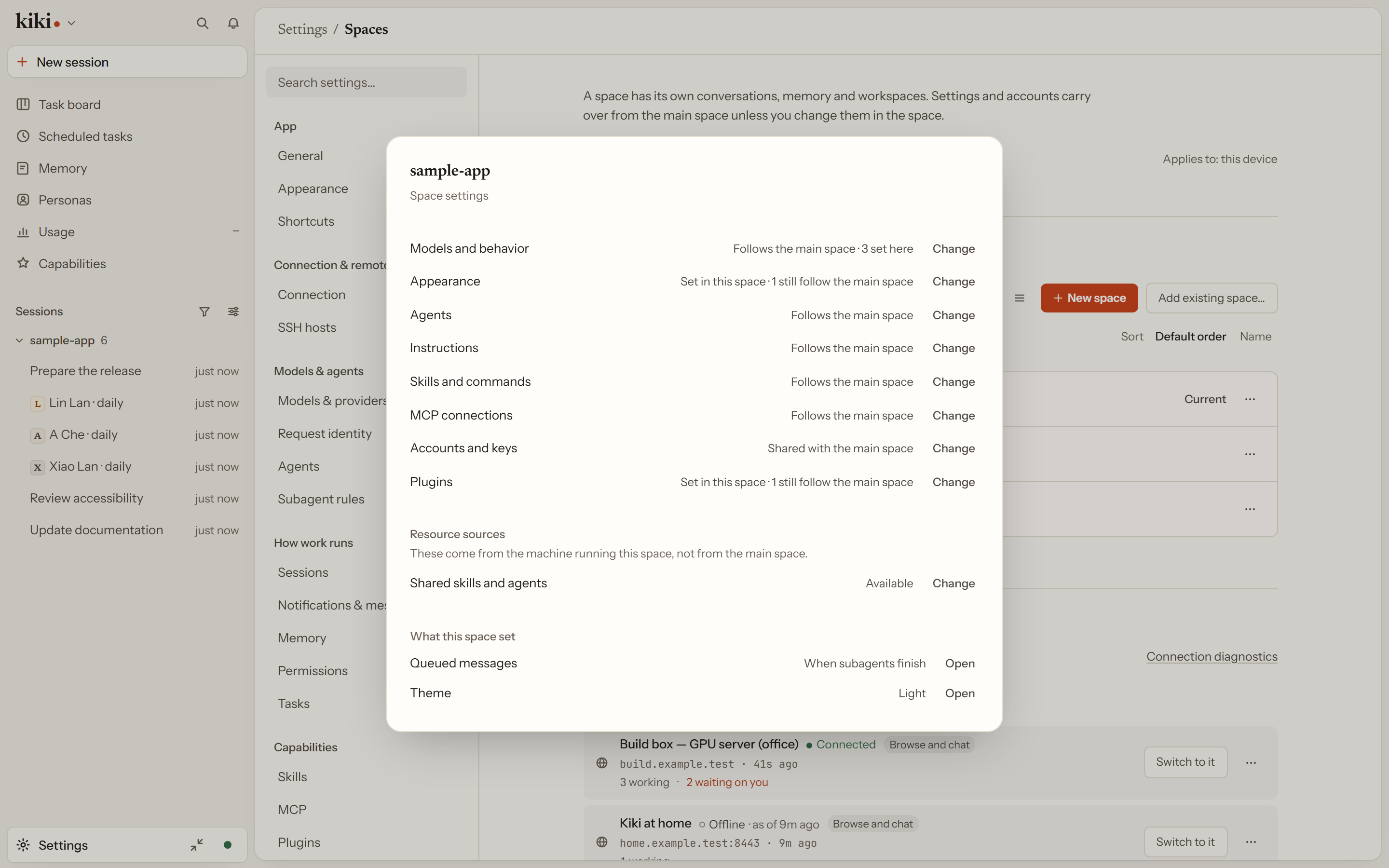
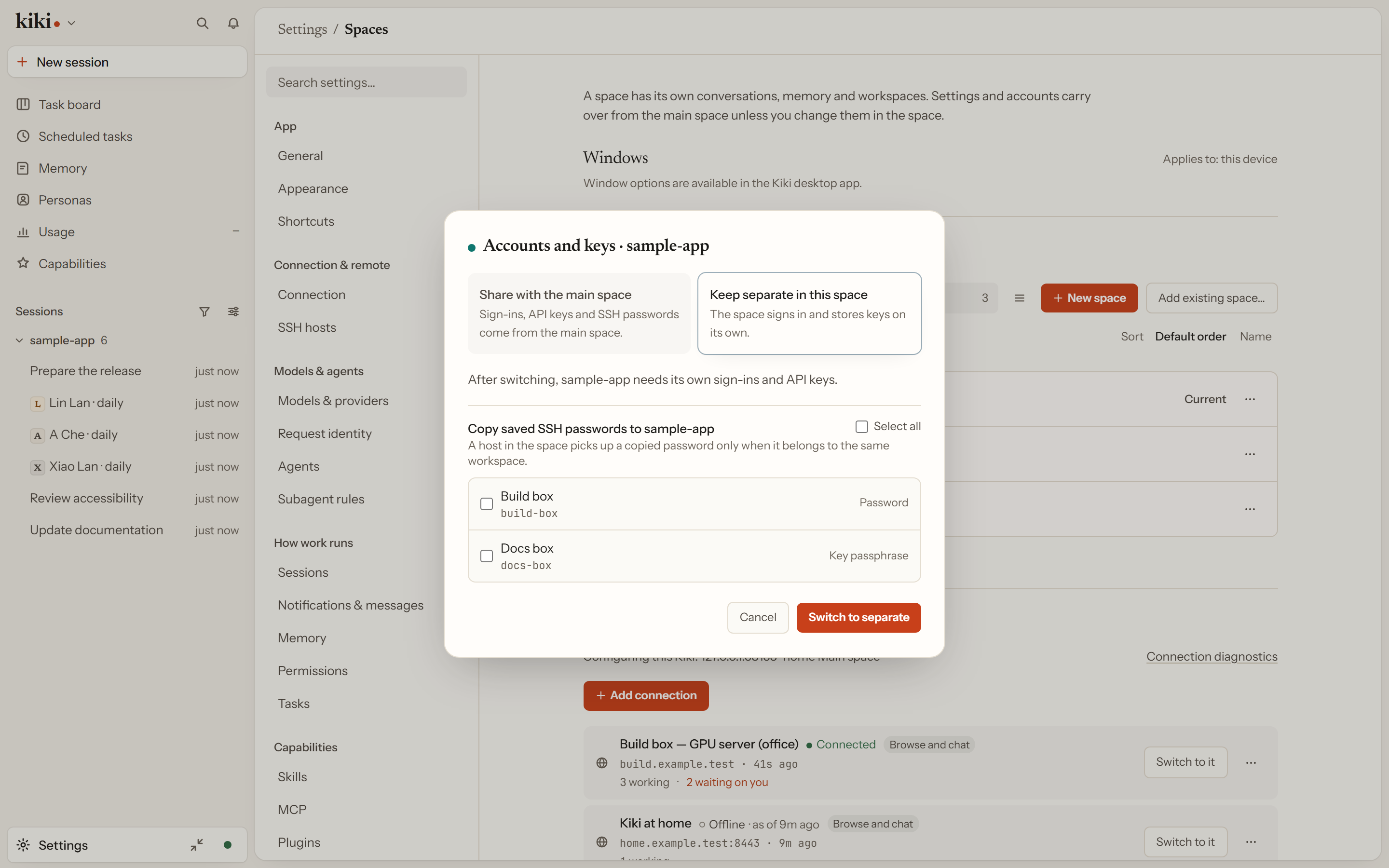
Credentials are the decision each subspace makes. Shared means the subspace reuses the main space's credentials; isolated means it keeps its own, so signing into a personal account in one subspace does not change the other. The space settings detail also shows, per item, what the space follows and what it fixes, so you can see whether a value is inherited or pinned. You can copy SSH profiles from one space into another, or copy one here, without moving anything by hand.
Change the credential scope on the subspace's own card in Settings → Spaces. See Settings pages for the other sections of that dialog, and Models, Prompts & Permissions for what those credentials reach.
A work mode is a working surface inside a space, not another data boundary. The mode picker offers Kiki and Work by default; explicitly setting KIKI_EXPERIMENTAL_WORK_PRESETS=false or [experimental] work_presets = false keeps it off. Each space has its own Work setup, name and preferred task. Selecting Work offers Office, writing, extraction and table-check starters; its setup shows the packages that are actually installed and asks before installing missing packages or OfficeCLI. A failed setup retains the packages that succeeded so you can retry the rest. Switching modes does not change an existing session's model, profile or permissions, and removing a mode keeps its documents, sessions and shared plugins.
On desktop, Open in new window opens another mode in the same space. Its route and mode belong to that window, while the space's service is shared; closing one window does not stop background work. Explicit restart or update asks about the affected space's other windows and unfinished work before cancelling and draining it. A daemon managed outside the desktop app must be stopped through its own owner instead.
Remote connections
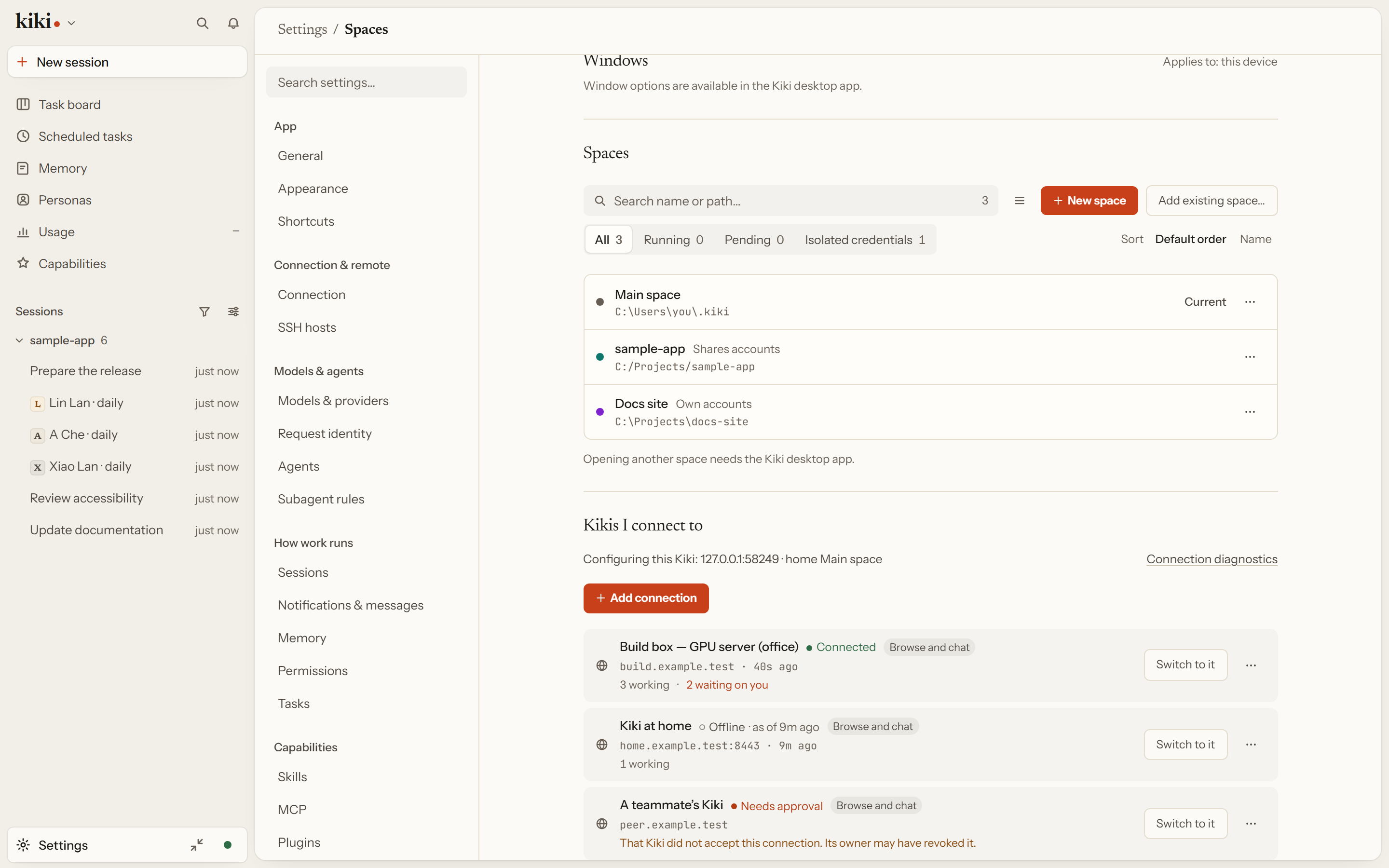
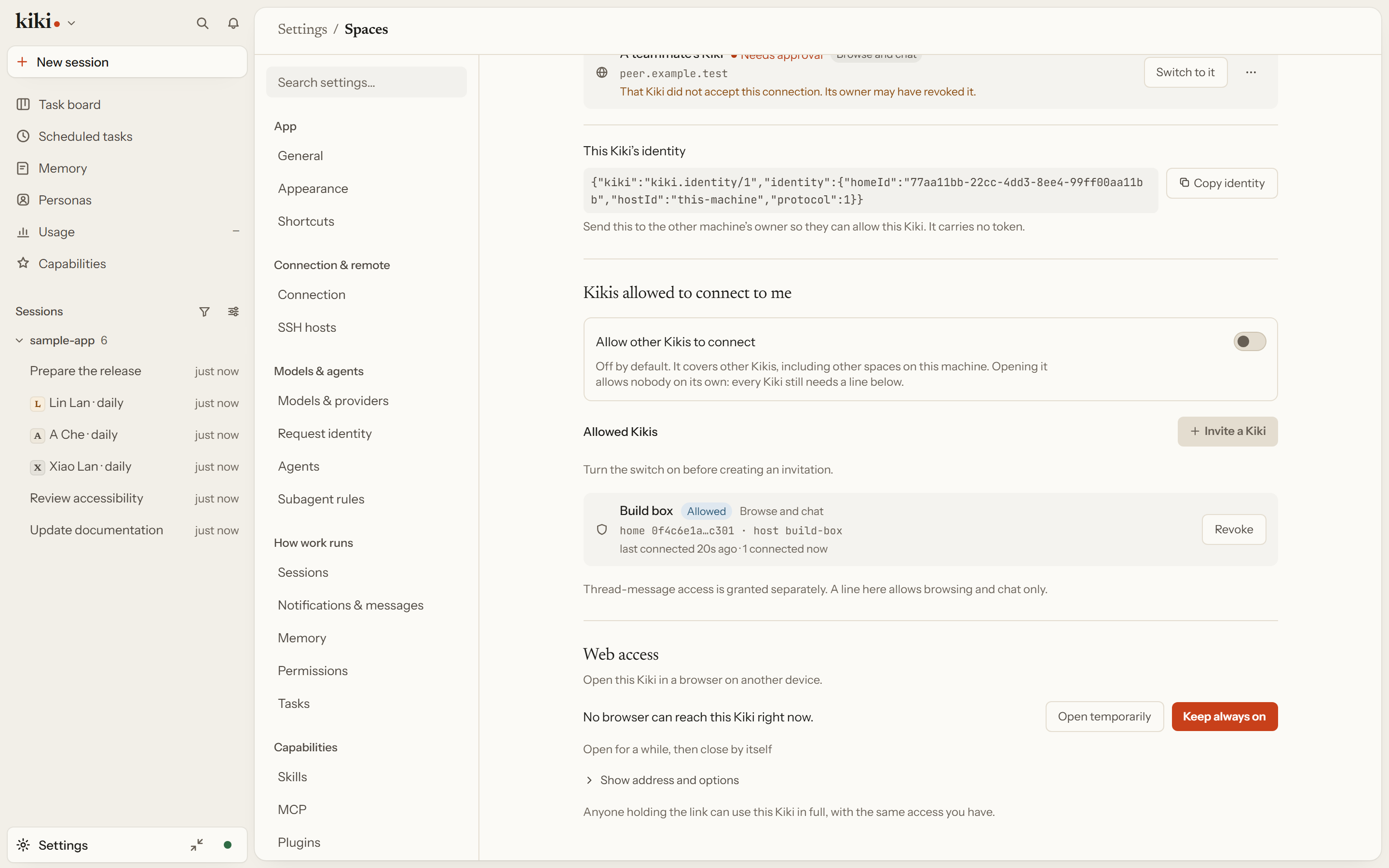
A remote connection is a directed link from this Kiki's home to another Kiki home on another machine. It is not a shared login: the target has its own identity, and it must approve the source before anything flows.
Receiving is off by default. Enabling the gate on the target does not approve anyone by itself — you then create an invitation, hand it to the source, and the source registers a connection against it. Every connection is one row with its own state, its last-known measurements, and actions that affect only that link: enable, disable, retry, or remove. inbound revoke <grantId> stops one source's reads and streams without touching the others, and inbound disable closes all peer access while keeping the allow list. Removing a connection releases local credentials and owned tunnels; it does not stop the target daemon or undo work already started there. An offline target keeps its last-known measurements and their timestamp rather than reporting invented zeros.
The command side plans before it acts. kiki connections ... ssh plan only queries; ssh execute PLAN_ID attaches; only an explicit --ensure may start a remote daemon, and that daemon keeps running until you stop it. Neither opens inbound access on its own. The GUI also rechecks an already-running target before attaching, without starting it or asking for another confirmation. Both hosts need a compatible connection protocol and working SSH authentication with known-host verification; their Kiki version strings do not have to match. Kiki does not install remote software for you.
If the target temporarily closes inbound access, wait for its owner to reopen it, then try your operation again. A refusal for one operation does not sign you out of the connection, and Kiki never automatically repeats a refused write. An invalid token or revoked grant still rejects access; replace the connection's credentials or authorization before trying again.
See kiki connections and kiki bridges for the command reference behind these settings.
Thread bridges
A thread bridge is a one-way channel for thread messages between two homes. It is deliberately narrower than a remote connection: the target home approves the exact source and target scopes, the operations — read, send, wait, and wake only if you ask for it — and an expiry, and the bridge carries nothing else. Without wake, sends stay pending rather than starting a model turn on the other side.
A bridge never grants GUI browsing access, and GUI tokens and SSH logins do not grant bridge access. Receipts distinguish source pending, target accepted, prompt delivered, and rejection — delivered means the prompt arrived, not that a model replied. Pending sends keep their original key and sequence while retrying, and retry checks the durable queue rather than creating a new message. Revoking a bridge does not delete any session.
See kiki bridges.
Web access
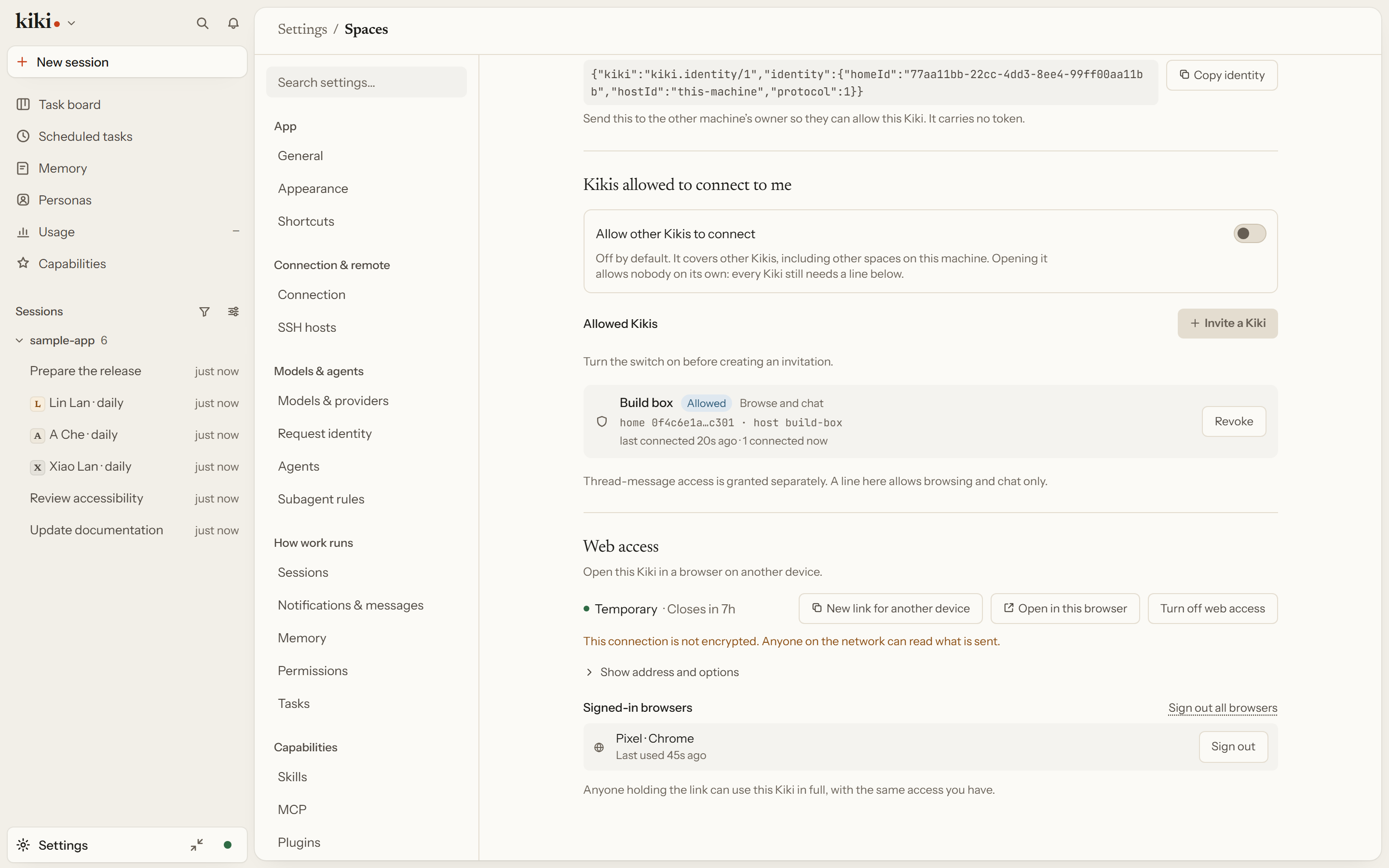
Web access opens this Kiki from a browser on another device. Whoever holds the link can use it in full, with the same access you have — it is not a read-only share, and a temporary entry is temporary only in how long it stays open.
Turn it on under Settings → Spaces → Web access, or from the command line with kiki web --temporary (open for eight hours, then close by itself) or kiki web --persistent (stay open until you turn it off). Each run prints a single-use link that signs a browser in; Kiki redeems it for a session cookie held by the browser itself, keeps only a digest, and shows the link once — a lost link is replaced by a new one rather than looked up. kiki web --revoke [session-id] signs out one browser or all of them. Turning Web access off revokes every link and every browser session; it does not stop the daemon, the desktop app, or the TUI, and it does not cancel work already started.
Plain LAN HTTP (--insecure-no-tls) is not encrypted: anyone on the same network can read what is sent. For anything beyond a network you trust, put a TLS-terminating reverse proxy in front and pass --public-url <https://…>.
Web access and remote connections are different objects. A remote Kiki is another Kiki with its own identity and a per-source grant you approve; a web link is access to this one, owned by whoever owns this machine. Turning Web access on does not admit any Kiki.
In-session SSH
A session can hold SSH hosts. Use the input box's + menu to add one, and the SSH control above the input box lists the joined hosts, takes a host away on X, and reopens the same list to add more. A joined host is a resource of that session, not something each message carries — so the timeline does not fill with host bubbles, and removing a host removes it from the session rather than from your machine.
The control appears only once the session holds a host. A session that has joined none has no SSH line above its input box, and the + menu is still the way to add the first one. It stays on screen for as long as the host is joined, including between turns, because "joined" is the session's own state rather than whether a request happens to be running.
Adding a host puts it in the session's context; it does not connect to it. In a new session, picking a host in the + menu shows the same SSH control before the first message, and the hosts you selected are joined to the created session before that message is sent.
An agent can also name a configured host directly in a tool call, without adding it first. Main agents and subagents use the same connection-approval flow; hiding a host, rejecting a request, host-key verification and file permission rules still apply. Removing a host from the context does not revoke an already approved connection.
File paths belong to the selected host. On a Windows SSH host, use an absolute path such as E:/work/result.log; Read, Write and Edit use SFTP (SSH file transfer), independently of whether Git Bash is installed. Bash requires Git Bash on that remote Windows host.
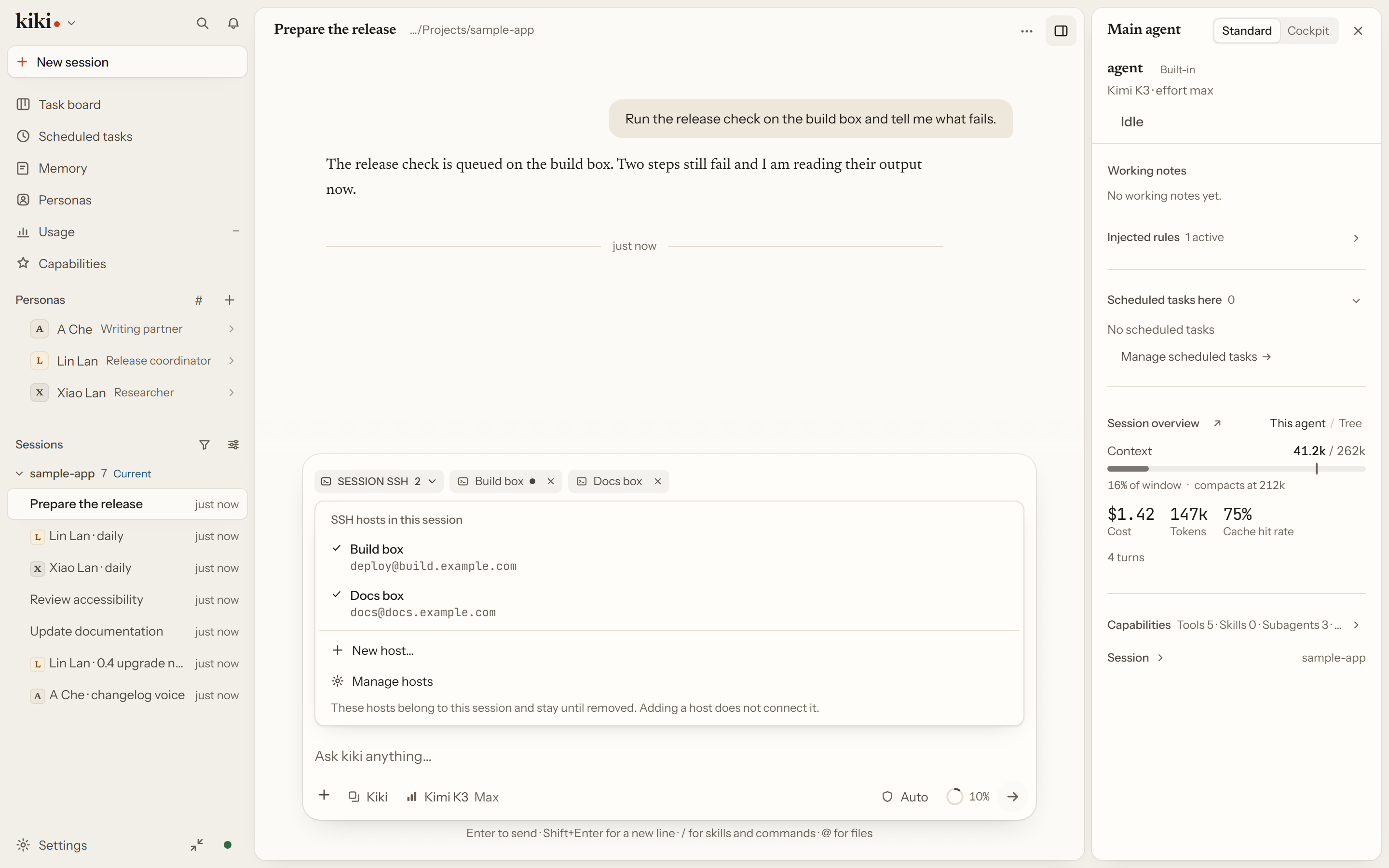
See Interface overview for the SSH control and the send-timing menu beside it.
Next steps
kiki connectionsandkiki bridges— the command reference behind these settings- Use Kiki in a browser — Web access in detail
- Settings pages — the rest of the dialog, including Connections